n8n Integration
n8n is a workflow automation platform that lets you connect APIs and automate services with little or no coding.
Our verified Auphonic community node brings Productions into n8n: start a production from any workflow,
react when a production has finished, and route the resulting output files to wherever they need to go.
n8n is available as a cloud service and can also be self-hosted, so unlike Zapier you can run your podcast automation entirely on your own infrastructure.
- External Resources:
Auphonic node at n8n: https://n8n.io/integrations/auphonic/
Auphonic Trigger node at n8n: https://n8n.io/integrations/auphonic-trigger/
Source code and issue tracker: https://github.com/auphonic/n8n-nodes-auphonic
n8n community nodes documentation: https://docs.n8n.io/integrations/community-nodes/
Installation
The Auphonic node is a verified community node, so it can be installed directly from within n8n:
In n8n, go to Settings > Community Nodes and click Install.
Enter the package name
n8n-nodes-auphonicand confirm.
The package installs two nodes: the Auphonic action node and the Auphonic Trigger node.
See the n8n installation guide for details,
in particular if you are on a self-hosted instance where only the instance owner may install community nodes.
Credentials
The nodes authenticate with an Auphonic API key:
Create an API key on your account settings page.
In n8n, create new Auphonic API credentials and paste in the API key. They show up as Auphonic account in the credential dropdown of both nodes.
The key is sent as a bearer token on every request, see Authentication.
n8n can test the credentials immediately: if they are valid, your Auphonic presets appear in the Preset Name or ID
dropdown of the Auphonic nodes.
Nodes and Operations
The Auphonic node works on the resource Production and offers three operations in the Operation dropdown:
Create, Get and Download Output File.
n8n additionally offers a generic Custom API Call entry, which lets you call any other endpoint of the
Auphonic API with the same credentials.
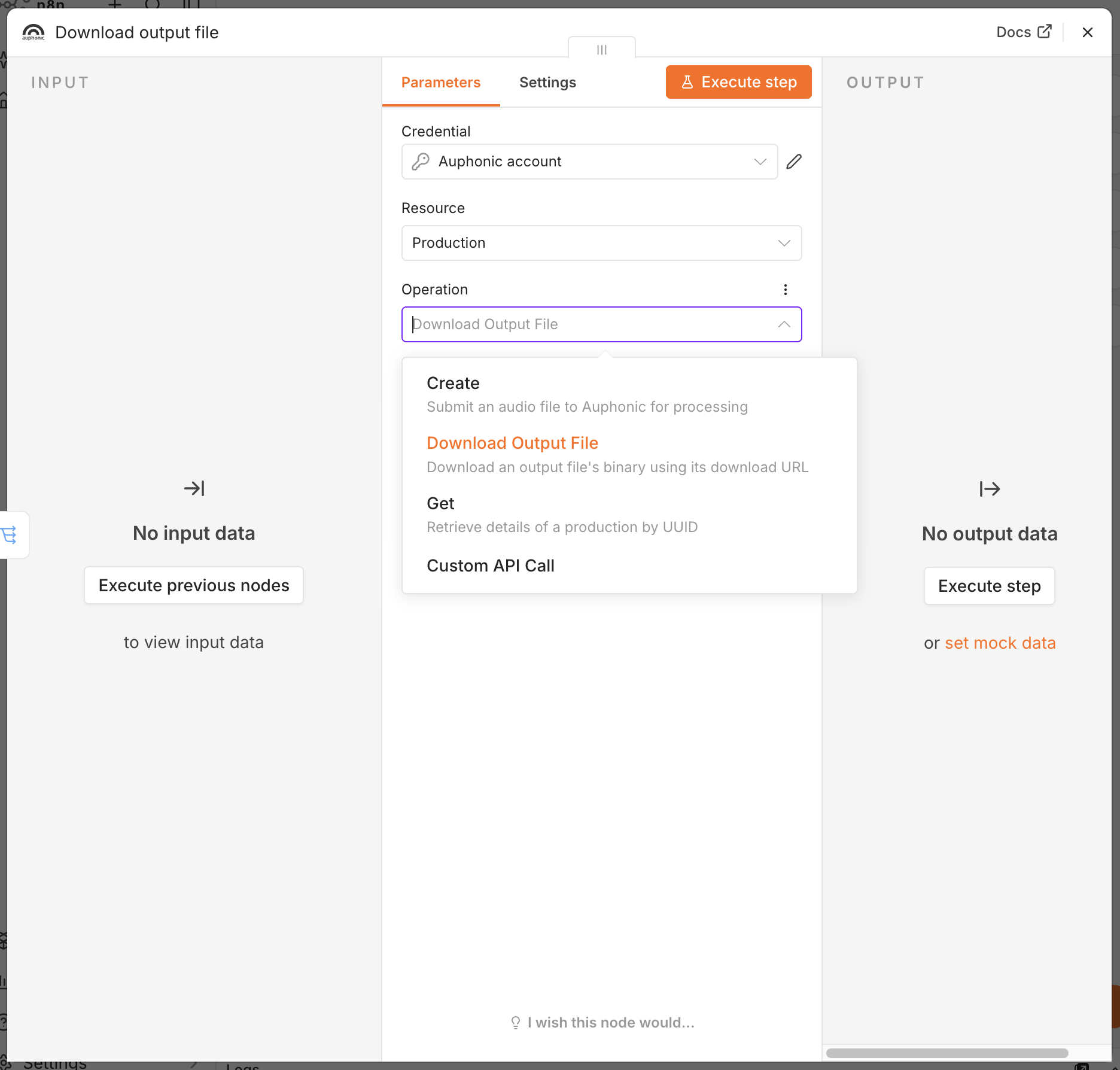
The operations of the Auphonic node.
Create Production
Operation Create: creates a new Production from a Preset and an input audio or video file, and optionally starts processing right away.
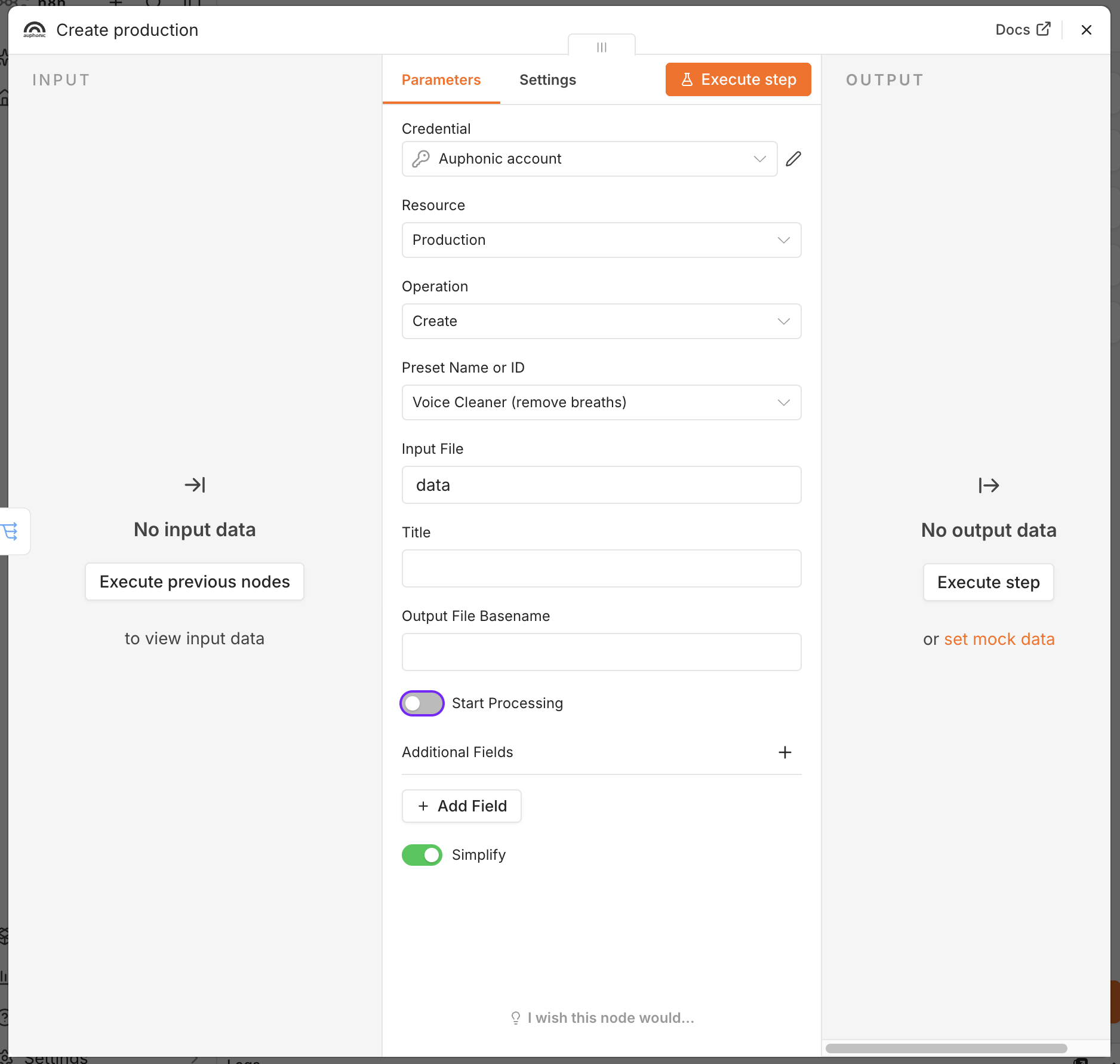
Creating a production from a preset, with Start Processing disabled.
- Preset Name or ID
The Auphonic preset the production is based on. Choose one of your presets from the dropdown, or provide a preset UUID via an expression.
The preset defines all audio algorithms, output file formats and External Services of the production.- Input File
The file to process: either a public URL to an audio or video file, or the name of a binary property on the incoming item that contains the file (for example
data).- Title
Optional title of the production.
- Output File Basename
Optional base filename for all output files.
- Start Processing
Enabled by default, so Auphonic starts processing immediately.
If you disable it, the production is created as a draft that you can start later — in n8n, via the API or in the web interface.- Additional Fields
Optional metadata and notification settings: Chapter Marks (one per line), Cover Image (public URL or binary property), Subtitle, Summary / Description, Tags (comma-separated) and a Webhook URL that Auphonic calls once processing is complete.
- Simplify
Enabled by default and returns a compact production object with the most useful fields —
uuid,status,title,length,format,has_video,output_files,status_pageandwarning(only if present).
Disable it to get the full raw production object of the Auphonic API.
Note
To try out a workflow without spending any credits, set Start Processing to disabled. The productions created by n8n will show up in your Auphonic account, but as long as they are not started, they do not cost any credits.
Get Production Details
Operation Get: fetches the details of an existing production.
- Production UUID
The production to retrieve. The field defaults to
={{ $json.uuid }}, so it picks up theuuidof the incoming item — for example the output of the Auphonic Trigger.- Simplify
Same as above: the compact production object by default, the full raw API response if disabled. The full response also includes
metadata,chaptersand the completeoutput_filesarray.
Download Output File
Operation Download Output File: downloads a single output file as binary data,
authenticated with your Auphonic credentials.
Auphonic download URLs redirect to the storage backend, and this operation follows that redirect for you
without passing your API key on to the storage host.
- Download URL
The download URL of the output file. Defaults to
={{ $json.download_url }}, which matches one item per file after a Split Out node onoutput_files(see Route and Download Output Files).- Put Output In Field
Name of the binary property the file is written to,
databy default.- File Name
Optional. If left empty, the file name is taken from the last path segment of the download URL.
Auphonic Trigger
Starts an n8n workflow as soon as a production has finished processing.
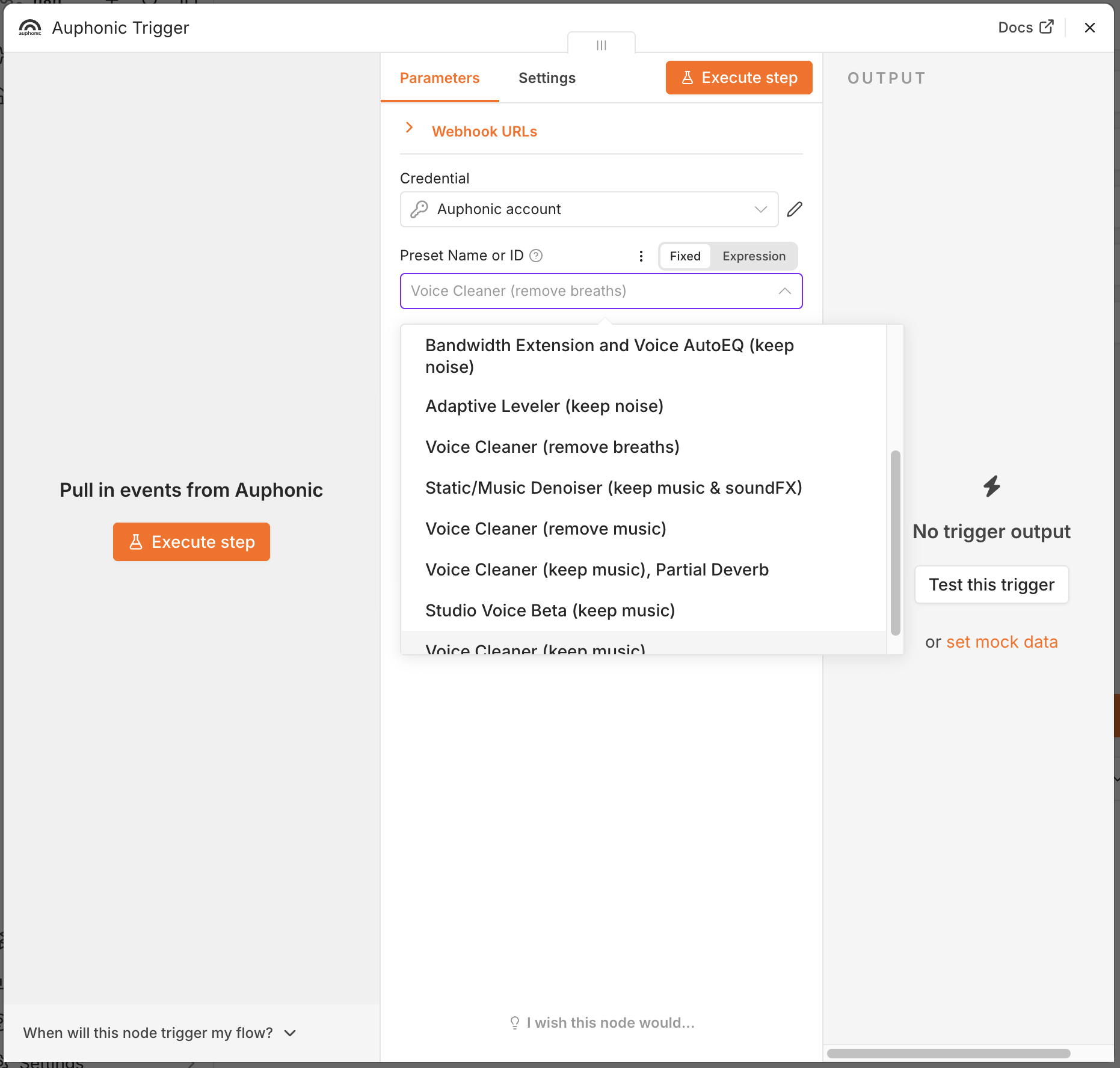
The Auphonic Trigger watches one of your presets.
- Preset Name or ID
The Preset to watch. When the workflow is activated, the trigger registers a Webhook on this preset, and every production created from that preset then starts the workflow once it is done.
Because the trigger listens on a preset, you can use one preset (and one workflow) per show and keep their automations completely separate.
Auphonic’s completion webhook only sends the production uuid and its status, so the trigger fetches the full production
from the API and emits one item with the complete production object, including the output_files array, status,
metadata and chapters. Downstream nodes therefore do not need an extra fetch step.
Note
The webhook is attached to the preset when the workflow is activated. Only productions created after that point trigger the workflow — a production that already exists will not.
The trigger fires for finished and for failed productions. Branch on the status or status_string field
if you want to handle errors separately, for example to send yourself a notification.
Example Workflows
Process a File and Start a Production
Add any node that produces an audio file — a Read/Write Files from Disk node, an HTTP Request node downloading audio, a cloud storage trigger such as Google Drive or Dropbox, or a Zoom node fetching a new recording.
Add the Auphonic node with the Create Production operation.
Select the Preset Name or ID to use.
Set Input File to the binary property holding the audio (for example
data) or to a public URL.Optionally set Title, Output File Basename and Additional Fields.
This is the n8n equivalent of a watch folder: drop a file into a folder, and the recording is post produced and published
according to your preset, without any manual upload.
See also our Watch Folders, which cover the same use case directly in Auphonic if all you need is
one cloud storage folder.
Route and Download Output Files
A finished production usually has several output files, for example an MP3, a video and a transcript. Since the number and type of outputs is only known at runtime, the routing happens on the data:
Start with the Auphonic Trigger (or a Get Production Details operation), so that the production object including its
output_filesarray is available.Add a Split Out node and set Fields To Split Out to
output_files. This produces one item per output file, each withdownload_url,filename,formatandending.Add a Switch node and branch on the file type, for example on
={{ $json.format }}or={{ $json.ending }}(mp3,wav,mp4, …), or on the production-levelhas_videoflag.On every branch that needs the actual file, add the Auphonic node with the Download Output File operation. Its Download URL field already defaults to
={{ $json.download_url }}, so no further configuration is required.Send the downloaded binary to its destination: cloud storage, a podcast host, YouTube, an email, a Slack message, …
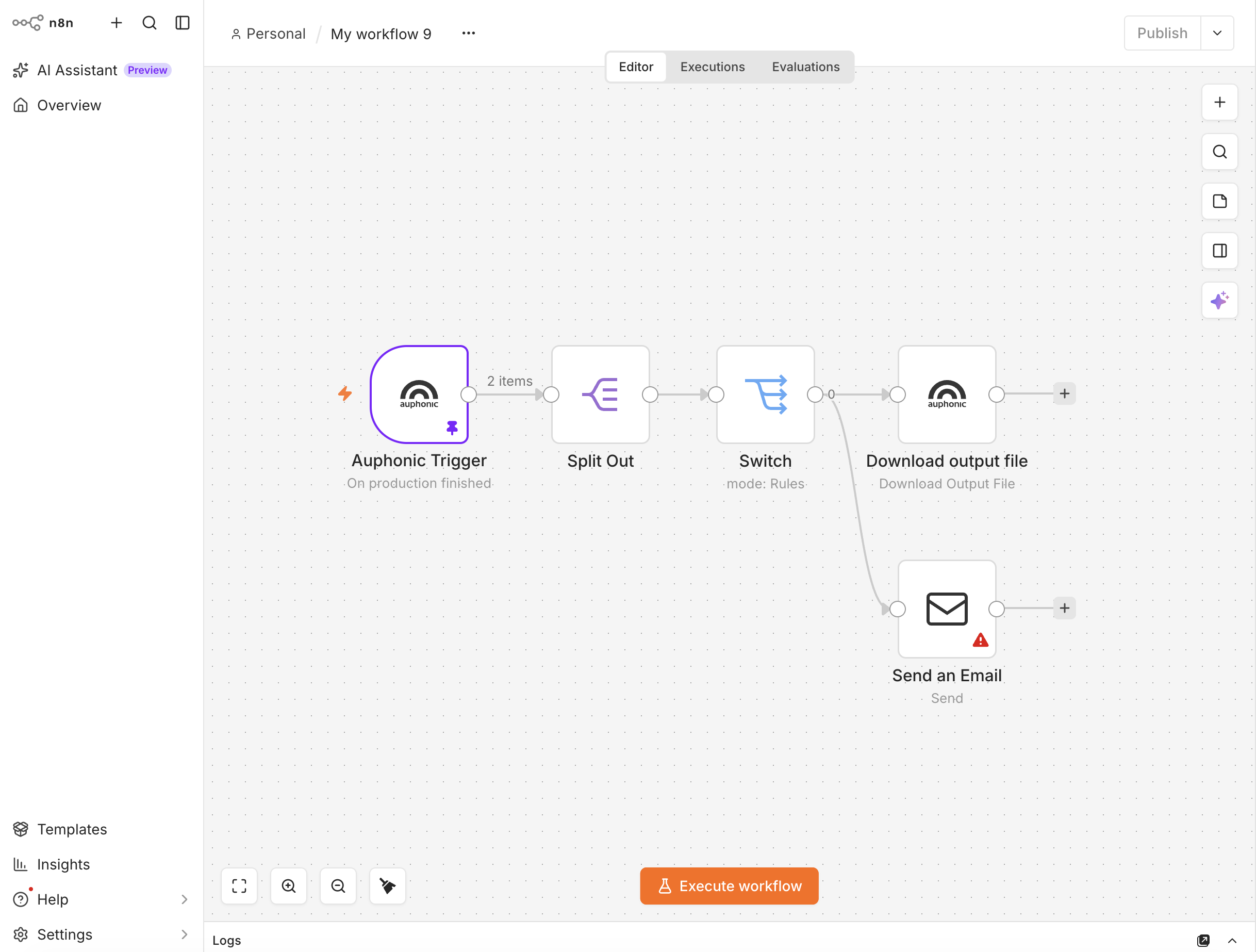
A complete workflow: the Auphonic Trigger fires when a production is finished, Split Out creates one item per output file, and Switch routes them to a download or a notification.
Output files on branches that you do not wire up are never downloaded into n8n, which is useful when your outputs are large.
Tip
Many publishing targets are already available as External Services in Auphonic. If your preset can upload the result directly, let Auphonic do it and use n8n only for the steps it cannot cover, such as notifications, spreadsheets, internal tools or human transcription services.
Announce a New Episode
Once the production is finished and published, further n8n nodes can announce the new episode: post to social media,
create a blog post, add a row to a spreadsheet, send an email with the audio file attached, or notify your team
on Slack, Matrix or Discord.
The production object emitted by the trigger contains the metadata of the production, so titles, descriptions,
chapters and the status_page URL can be used directly in those messages.