Sharing
You can share your productions with other Auphonic users, for example with a co-host, an editor or a client.
They can listen to the results, download the files and make their own copy, but only you can change, start or
delete the production.
Presets are shared the same way.
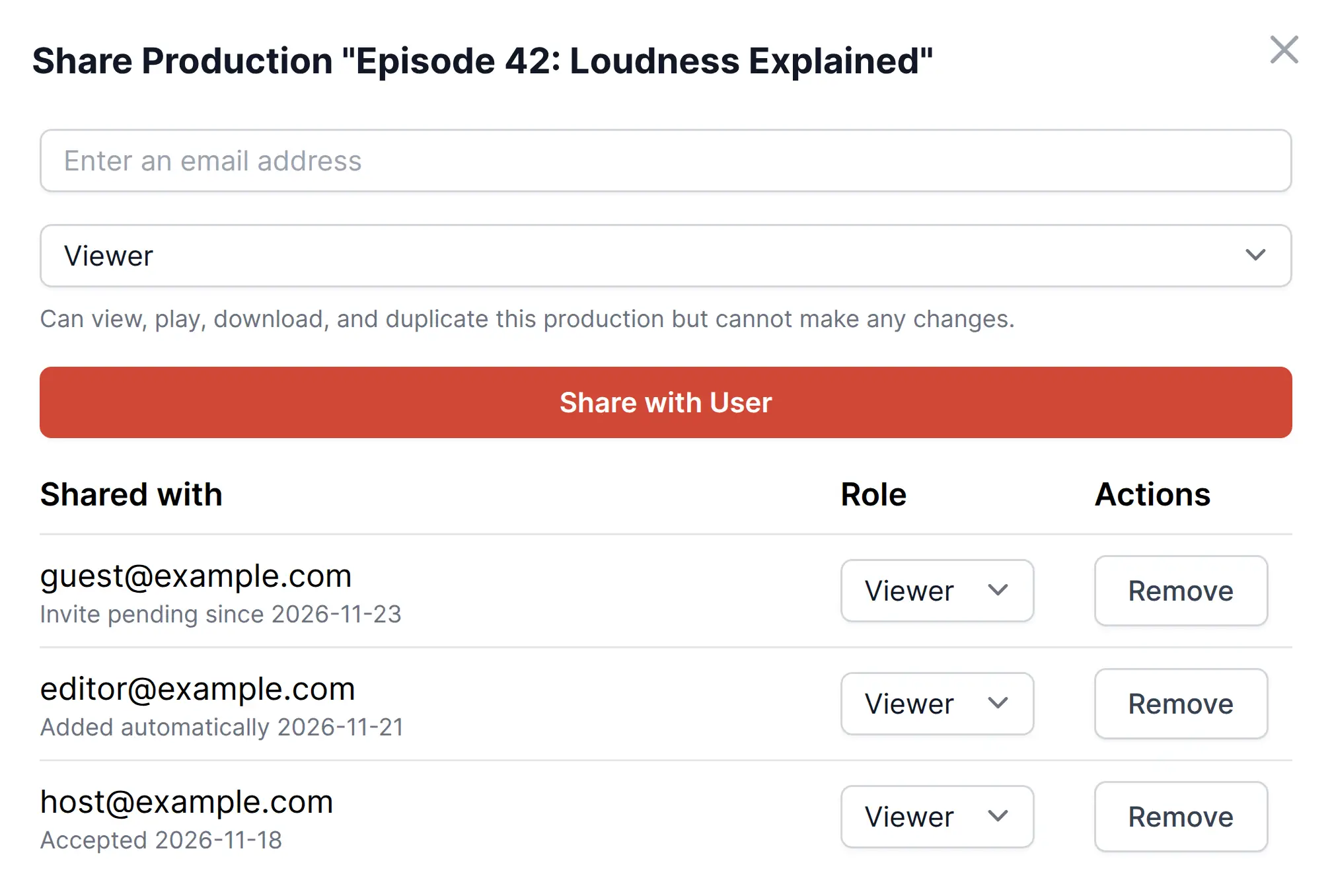
Sharing a Production
On your Productions page, click Share on the card of the production.
Enter the email address of the person you want to share it with.
Click Share with User.
The person gets the role Viewer: they can view, play, download and duplicate the production, but can’t change it.
If the address belongs to an Auphonic account, its owner receives an invitation email and finds the invite on their Productions page. Auphonic doesn’t send emails to addresses without an account, so let the person know yourself: the invite shows up as soon as they sign up with that address.
An invite nobody answers within 90 days is deleted. You don’t get a notice about this: the invite just disappears from the list below. To invite the person again, share the production again.
Below the form, the dialog lists everyone the production is shared with:
- Invite pending since …
The person hasn’t accepted the invite yet.
- Accepted …
The person accepted the invite and has the production in their account.
- Added automatically …
The person always accepts your shares, so the production was added to their account without an invite.
- Shared with all team account members
The production is shared with your team account.
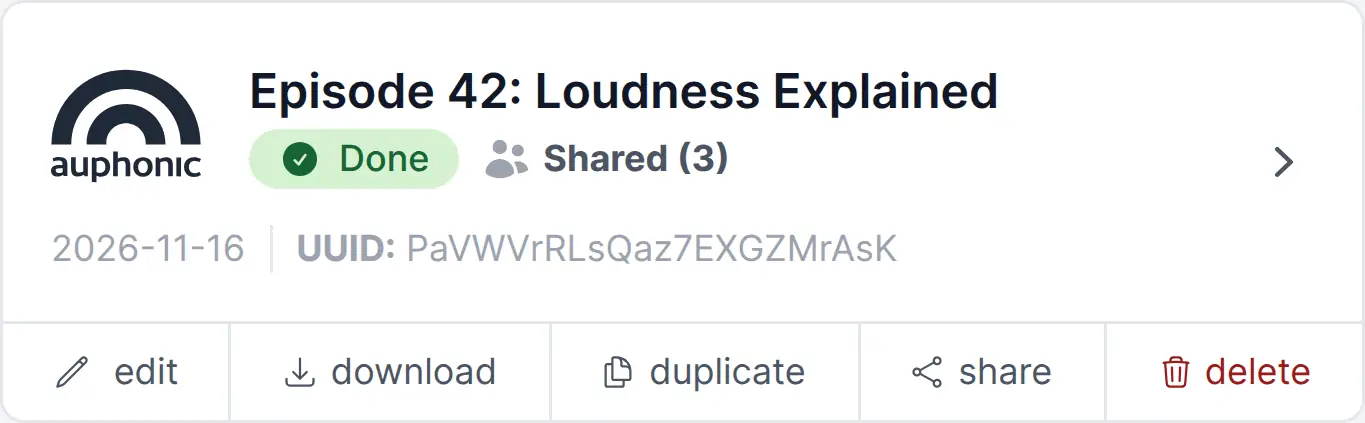
Click Remove to take back access or to withdraw a pending invite. On the production’s card, Shared shows with how many people the production is shared:
Accepting an Invite
When someone shares a production with you, you receive an email, and the invite appears under Pending Invites at the top of your Productions page:
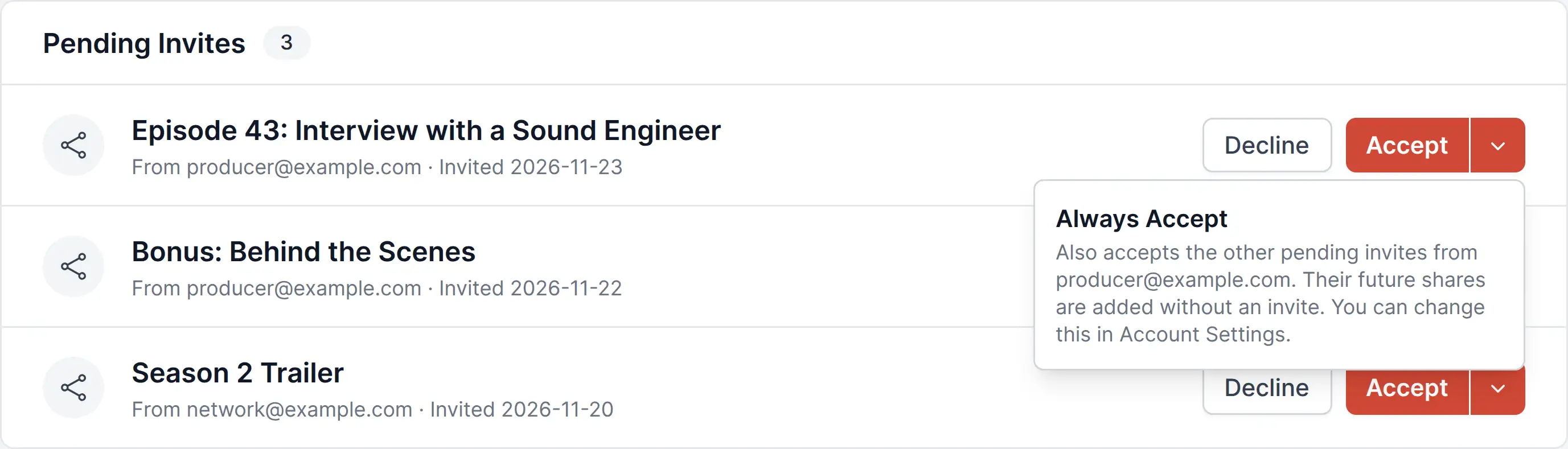
- Accept
Adds the production to your account.
- Always Accept
Opens with the arrow next to Accept. Accepts this invite and all your other pending invites from the same person, and adds everything they share with you in future without an invite (see Always Accept).
- Decline
Removes the invite. The owner would have to invite you again.
Answer an invite within 90 days (the invitation email gives the date). After that, it is deleted, and the owner would have to invite you again.
An invite belongs to the email address it was sent to: to see it, log in to the Auphonic account with that address.
Working with a Shared Production
Productions shared with you are marked Shared with me on your Productions page. To list only these, choose Shared with me as the filter in the sidebar.
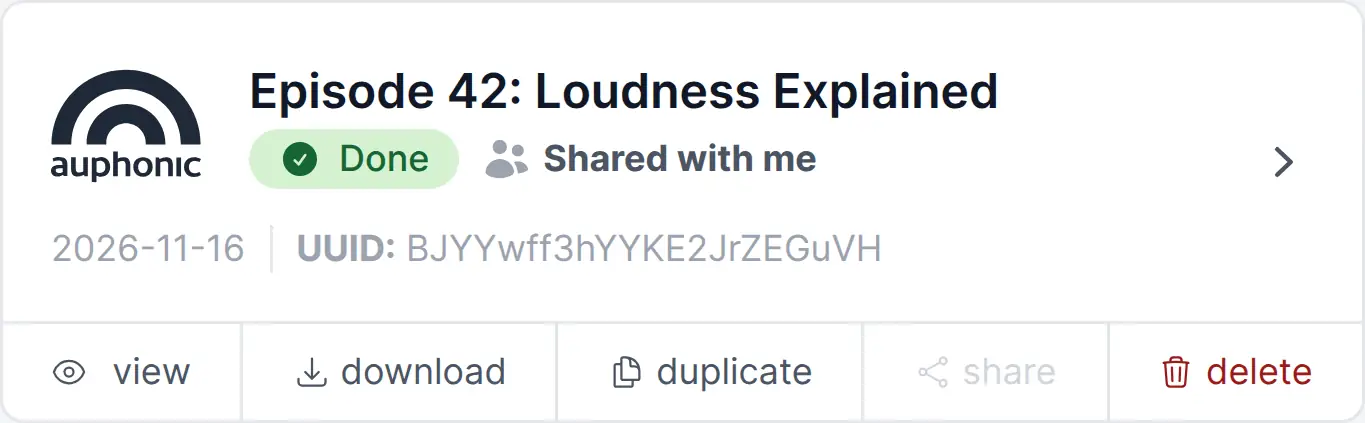
As a viewer, you can:
open the production’s status page, listen to the results and look at the processing statistics,
open the Audio Editor and the settings of the production, both read-only,
download the result files,
Duplicate the production.
The duplicate is your own production: you can change it and start it with your credits. It doesn’t take over the owner’s external services, so add your own services for publishing or file transfers.
To remove a shared production from your account, click Delete on its card and confirm with Remove. This only removes it from your account; the owner’s production stays as it is. Productions shared with your whole team account can only be removed by their owner.
Note
A shared production is only available as long as the owner keeps it. If the owner deletes it, or its files are removed from our servers, it also disappears from your account.
Always Accept
If you work with someone regularly, you can skip their invites: choose Always Accept on one of their invites, and everything they share with you in future is added to your account right away. You still get an email about each new share.
The people you always accept shares from are listed in the Sharing section of your Account Settings:
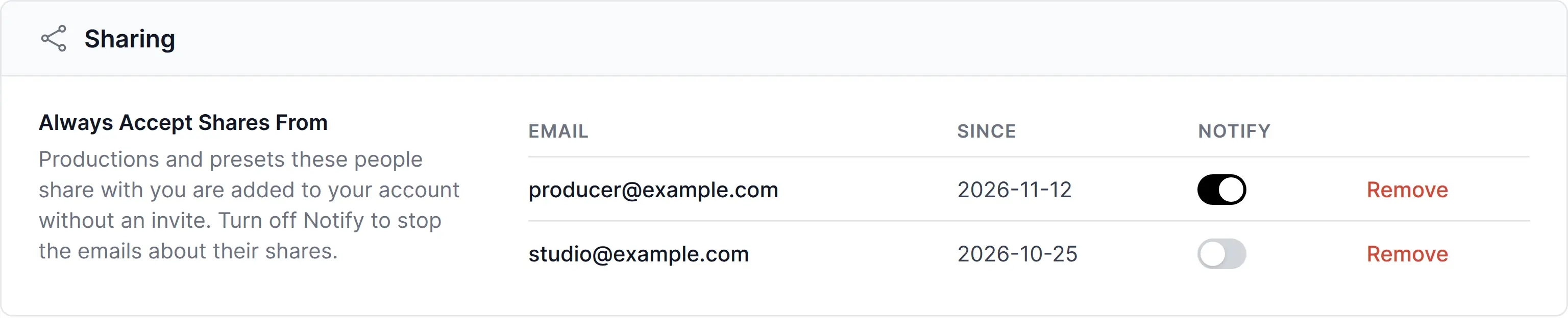
- Notify
Turn it off to stop the emails about this person’s shares.
- Remove
Their future shares arrive as invites again. Productions you already have stay in your account.