




Auphonic Editor
The Auphonic Editor appears on the result page of each finished production and offers a detailed, interactive overview of every adjustment made by our algorithms. Use it to compare input and output files, add or refine cuts, edit denoise or filtering methods per-segment, adjust the leveler gain curve, zoom and scroll through the waveform, jump to a specific spot via the auto-generated transcript, review comprehensive audio statistics, and more.
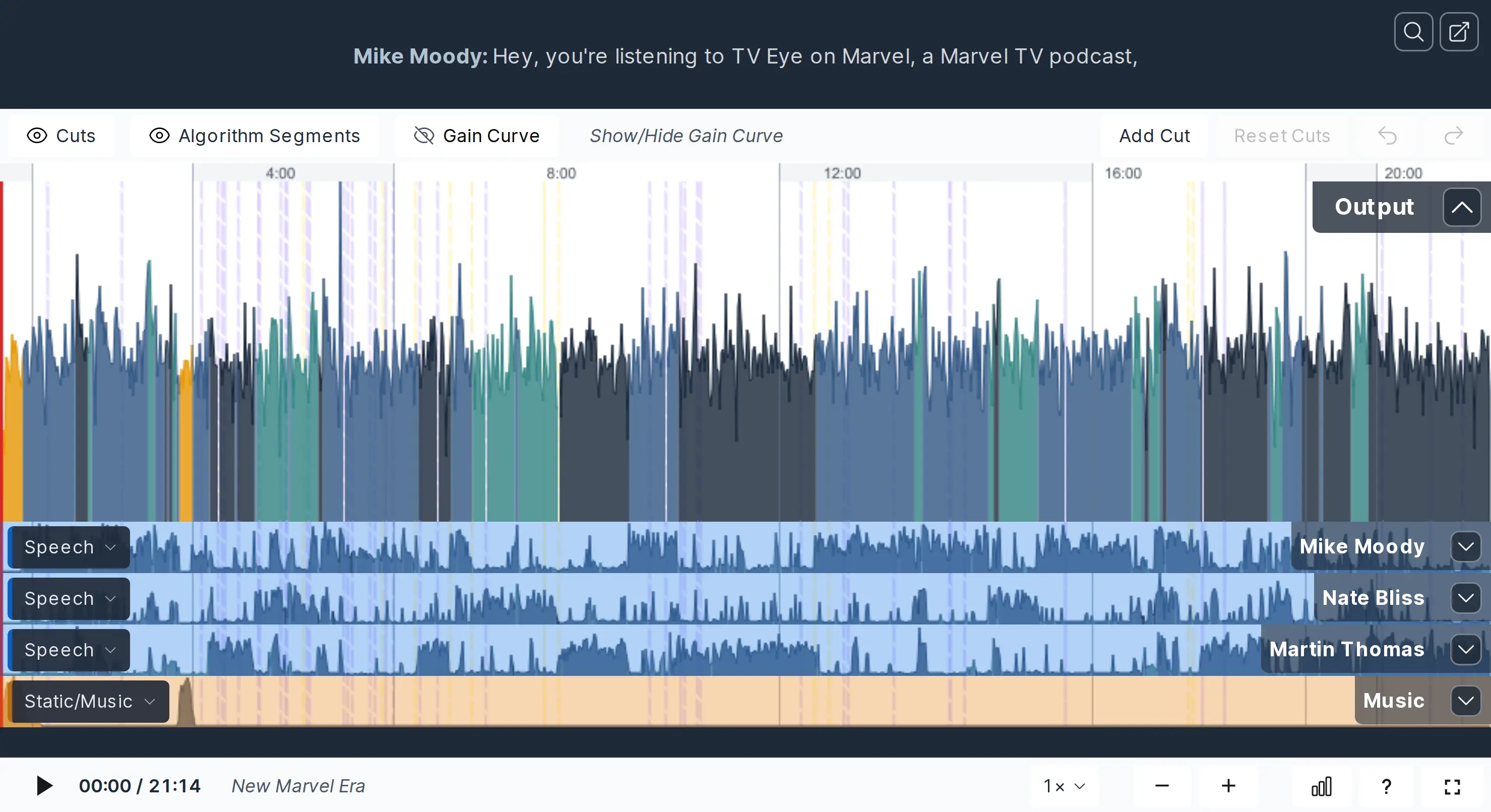
A screenshot of the Auphonic Editor on the result page of a finished Multitrack Production with minimized input tracks.
Cut Editing
With the cut editing feature in the Auphonic Editor, you can manually refine all machine-made cuts
and fine-tune your production to your liking. Adjust, deactivate or activate existing cuts, or add new cuts yourself.
To apply all our Automatic Cutting algorithms, you can, for instance, use our Auphonic Preset:
Cut Filler Words, Coughs and Silence.
Once your file has been processed successfully, you will be directed to the Result Page with our Auphonic Editor:
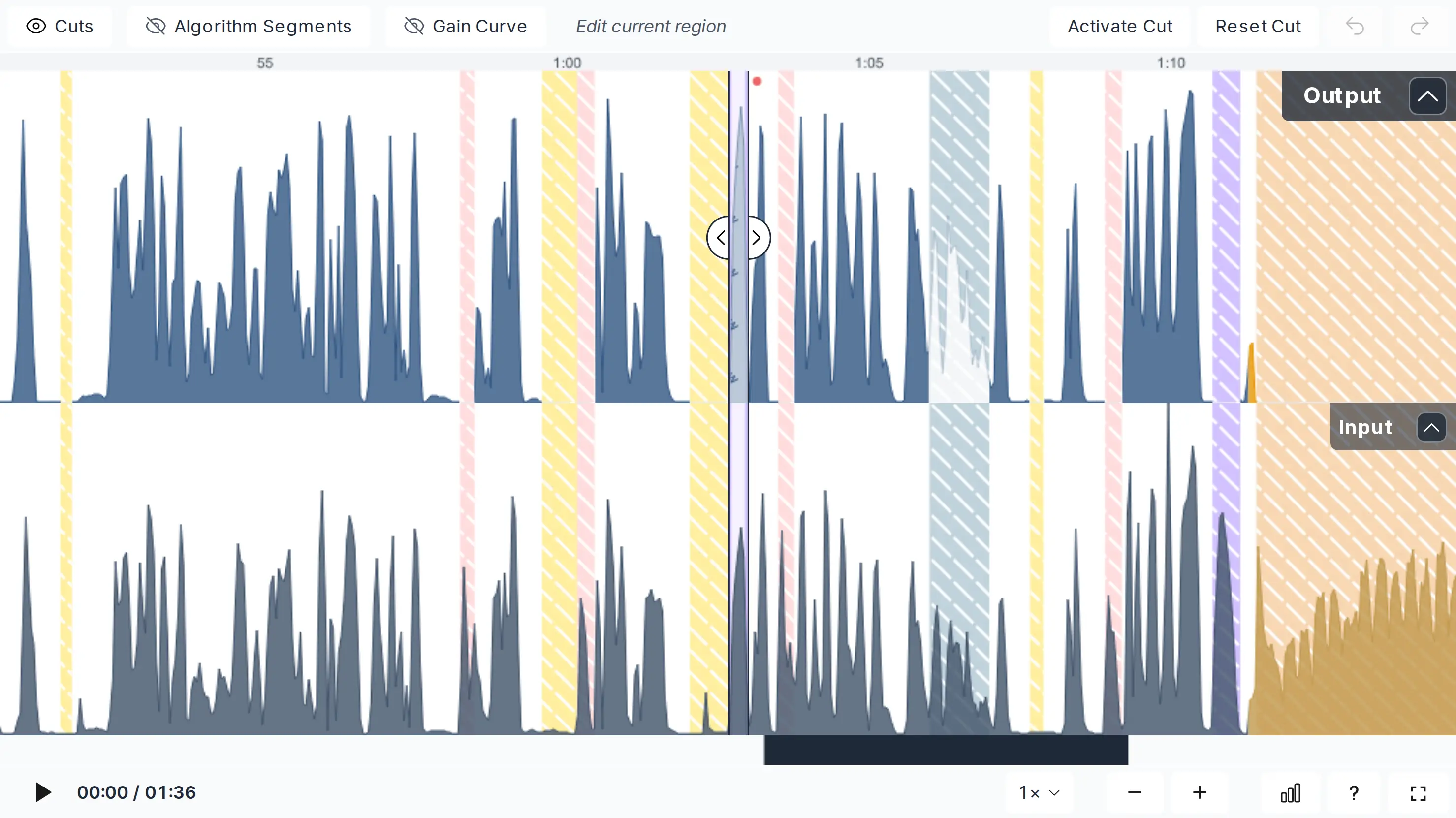
View with a selected and deactivated filler cut.
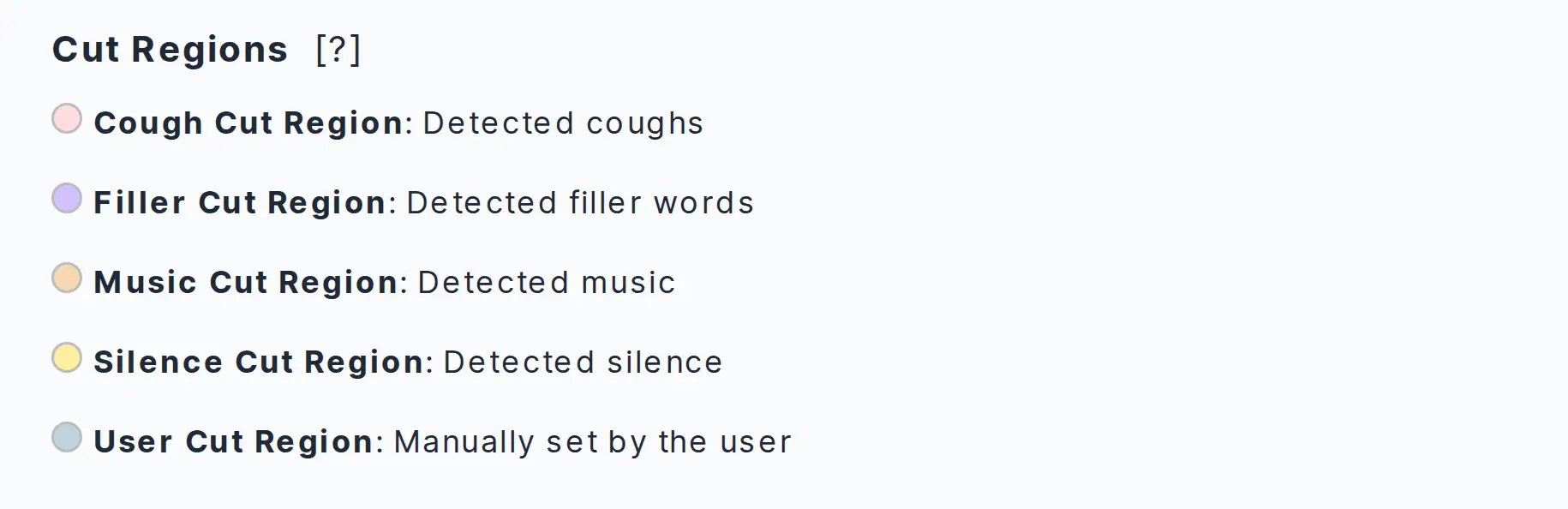
The type of the cutting events is displayed by the following color code:
Note
To edit your cuts, ensure the cut layer is visible by switching the “Show/Hide Cuts” toggle
from to .
If more than one cutting algorithm is activated, opens a dropdown and also works
as a filter: use its checkboxes to show Silence, Filler, Cough, Music and User cuts
individually or all at once.
You can deactivate cuts either by selecting a cut and clicking [Deactivate Cut] in the top bar or by using the hotkey [C]. To add a user cut, set the playhead to the desired cut location and click [Add Cut] in the top bar or use the hotkey [C]. When you set a new cut region, you will notice the waveform of the output audio turning white. With the [Delete Cut] button, or by using the hotkey [Del], you can remove a selected user cut, and the waveform color will reset. All cuts that deviate from the original Auphonic detection are marked with a red dot. (For an overview and descriptions of all controls and hotkeys, see the Controls and Shortcuts section.)
By clicking the [↺] button, you can undo each editing step one-by-one.
(Similarly, you can redo the [↺] with the [↻] button.)
Be careful when going back multiple steps, as your last actions are reset chronologically step-by-step,
whether they were cut, algorithm or gain edits, and regardless of which layers are currently visible.
You can manually adjust the regions of all cuts using the arrow sliders at the edges of your selected cut, allowing you to fine-tune both machine-made and custom user cuts. If you did not enable the automatic cutting algorithms in the first place, obviously you can only add new cuts manually afterwards.
Preview your cut result by setting the red playhead before the cut and pressing [⯈] or the spacebar.
Be aware that when listening to deactivated cut regions, we have to fill in parts of the unprocessed input file as a placeholder
until you [Apply Changes] as described below. This might sound strange during previewing,
especially when your input audio is very quiet or noisy, but it will sound correct after reprocessing.
If you are not happy with what you hear, you can either select one specific cut and press [Reset Cut] to revert it to the auto-detected position, or discard all manual cut changes and start all over by pressing [Reset Cuts]. The [Reset Cuts] button does not affect algorithm segment or gain curve edits but completely resets all cuts to what Auphonic delivered automatically, so all red-dot-marked cut modifications will disappear.
You can also [↺] undo the [Reset Cuts] action, but only until you leave the page. If you leave the page, the current cut state is saved and the editing history is deleted!
Important
When you are done editing, you must re-process your production (for free) by pressing [Apply Changes] at the bottom (or top) of the result page so that all your changes are applied to the output audio:

Re-Processing with [Edit Production] or [Apply Changes] is free and will not use additional credits!
If you want to do more than just [Apply Changes] and experiment with different feature settings, you can use the [Edit Production] button for reprocessing. Your edits will all be saved (including cuts, algorithm segments, gain points, transcript, and shownotes) and automatically applied when you restart your production with the updated settings.
All edits you make are free of charge - including changes to presets and feature settings. So feel free to experiment with all the tools we offer. However, please note that if you change the input file(s), additional credits will be required for processing.
Algorithm Segment Editing
Our algorithms split the input track into algorithm segments. For each segment, the Auphonic Editor lets you
control exactly where and how to reduce noise or how to enhance voices.
Our Dynamic Denoiser (the default denoising method) analyzes your audio, detects noise conditions,
and proposes the segments together with a denoising method for each of them.
From there, you can refine the automatically generated segment boundaries, choose a different denoising method per segment,
or switch denoising off completely for elements like jingles, embedded music, or sound effects.
In the same way, you can select a different Filtering Method
(including Studio Voice) for each segment, if different parts of your recording need different voice enhancement.
For more details, please see our blog post Denoising Editor: Choose Where (and How) to Reduce Noise
(the segments were introduced there as denoising regions).
Once your file has been processed successfully, you will be directed to the Result Page with our Auphonic Editor:
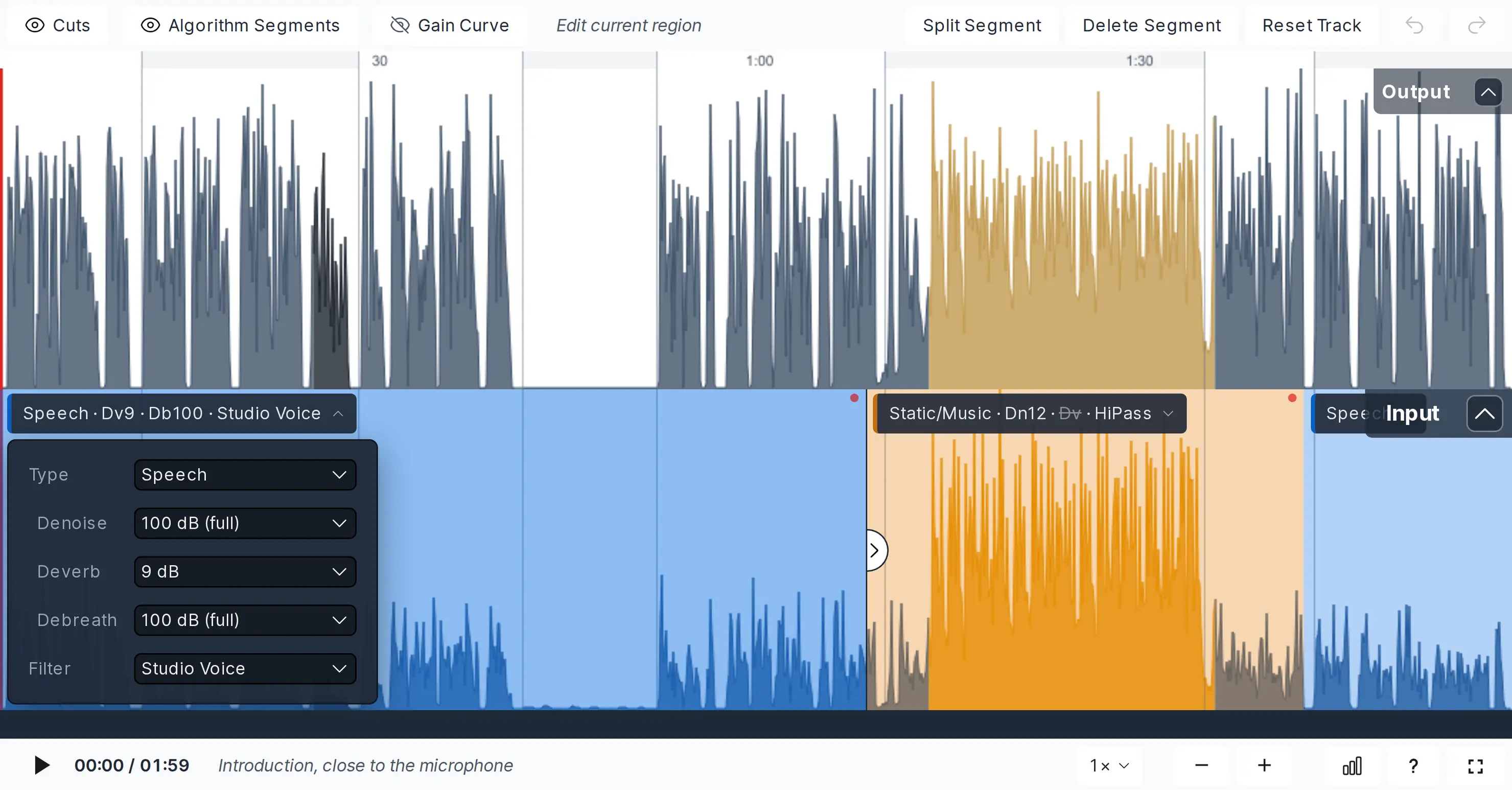
View with Speech Isolation for speech segments (blue) and Static Denoiser for music segment (yellow).
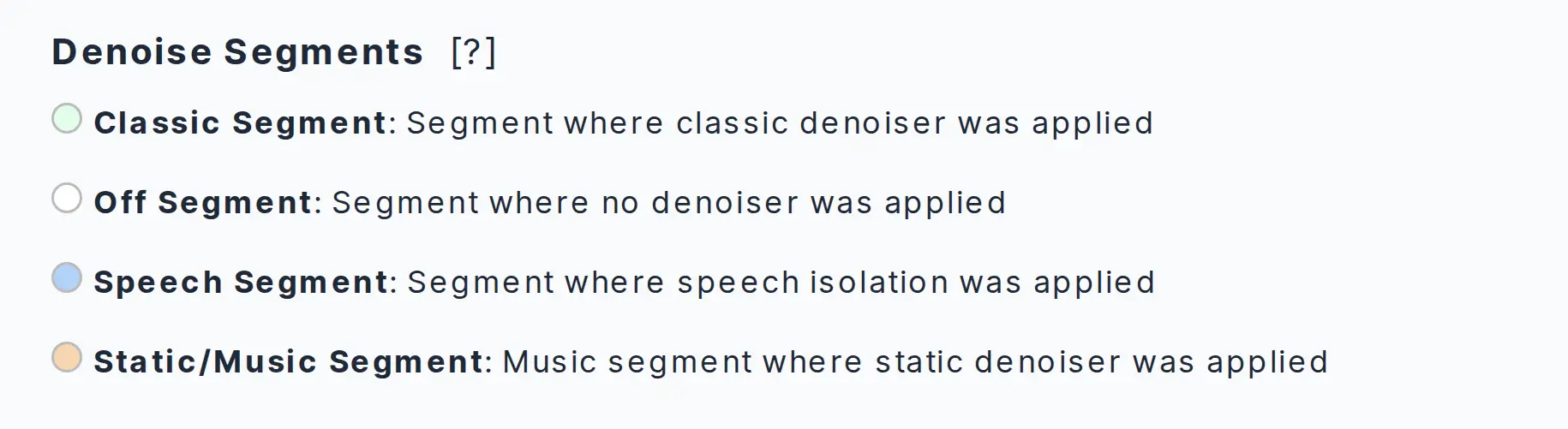
The denoising method of each segment is displayed on the input track using the following color code (the filtering method is shown in the settings of the selected segment):
Note
To edit the algorithm segments, ensure the algorithm layer is visible by switching the “Show/Hide Algorithm Segments” toggle
from to .
You can manually adjust the segment boundaries to more precisely match words, pauses, music fades, or noisy events by using the arrow sliders at the edges of your selected segment. All segments that deviate from the original Auphonic detection are marked with a red dot.
To create a sequence of smaller segments inside one automatic segment, you can split existing segments wherever you’d like. Just select the segment you want to split, set the red playhead to the position where you want your new segment to start, and press the [Split Segment] button.
If you’d prefer fewer segments, you can also completely remove a selected segment by pressing the [Delete Segment] button, or by using the hotkey [Del]. In this case the following segment is stretched into the area of the deleted segment.
To change the denoising or filtering method of a segment, click on the label of the selected segment and choose the method in its settings, or turn denoising off for this segment.
Be aware that when previewing edited segments, we can only play back the most recently processed state. For segments that don’t sound as expected during previewing, just try reprocessing (for free). The new denoising or filtering method for your edited segments is only applied when you do [Apply Changes] as described below. You can of course check your new segment boundary positions with the preview audio. Just place the playhead before the boundary you want to check and press [⯈] or the spacebar.
If you are not happy with your changes, you can undo each editing step one-by-one by clicking the [↺] button.
Be careful when going back multiple steps, as your last actions are reset chronologically step-by-step,
whether they were cut, algorithm or gain edits, and regardless of which layers are currently visible.
If you are really not happy with your changes and want to start your algorithm segment editing all over,
you can use the [Reset Track] button. The [Reset Track] button does not affect the cut or gain layers,
but completely resets all algorithm segment changes to what Auphonic delivered automatically,
so all red-dot-marked modifications from the algorithm layer will disappear.
You can also [↺] the [Reset Track] action, but only until you leave the page.
(Similarly, you can redo the [↺] with the [↻] button.)
If you leave the page, the current state is saved and the editing history is deleted!
We suggest using the following best practice workflow for the algorithm editing process with the Auphonic Editor. The automatically detected segments give you a fast starting point from which you can adjust for perfect results.
Run your production with Noise and Reverb Reduction and/or a Filtering Method
Open the production result page to see our audio editor
Split, delete, or move segment boundaries in the Algorithm Segments layer
Select the desired Denoising Method (and optionally a different Filtering Method) for that segment, or turn denoising off
Finally, press [Apply Changes] or [Edit Production] to apply your changes (for free)
Important
When you are done editing, you must re-process your production (for free) by pressing [Apply Changes] at the bottom (or top) of the result page so that all your changes are applied to the output audio:
Re-Processing with [Edit Production] or [Apply Changes] is free and will not use additional credits!
Gain Curve Editing
Our Adaptive Leveler balances level differences between speakers and within
every input track automatically. The gain curve shows how much gain the leveler applied at
every point of an input track, so you can see exactly where your audio was amplified and
where it was turned down.
Editing the curve is useful wherever you want a different result than our algorithms produce -
a speaker who should stay in the background, a laugh that got amplified more than you like,
or a jingle that should be louder or quieter relative to speech:
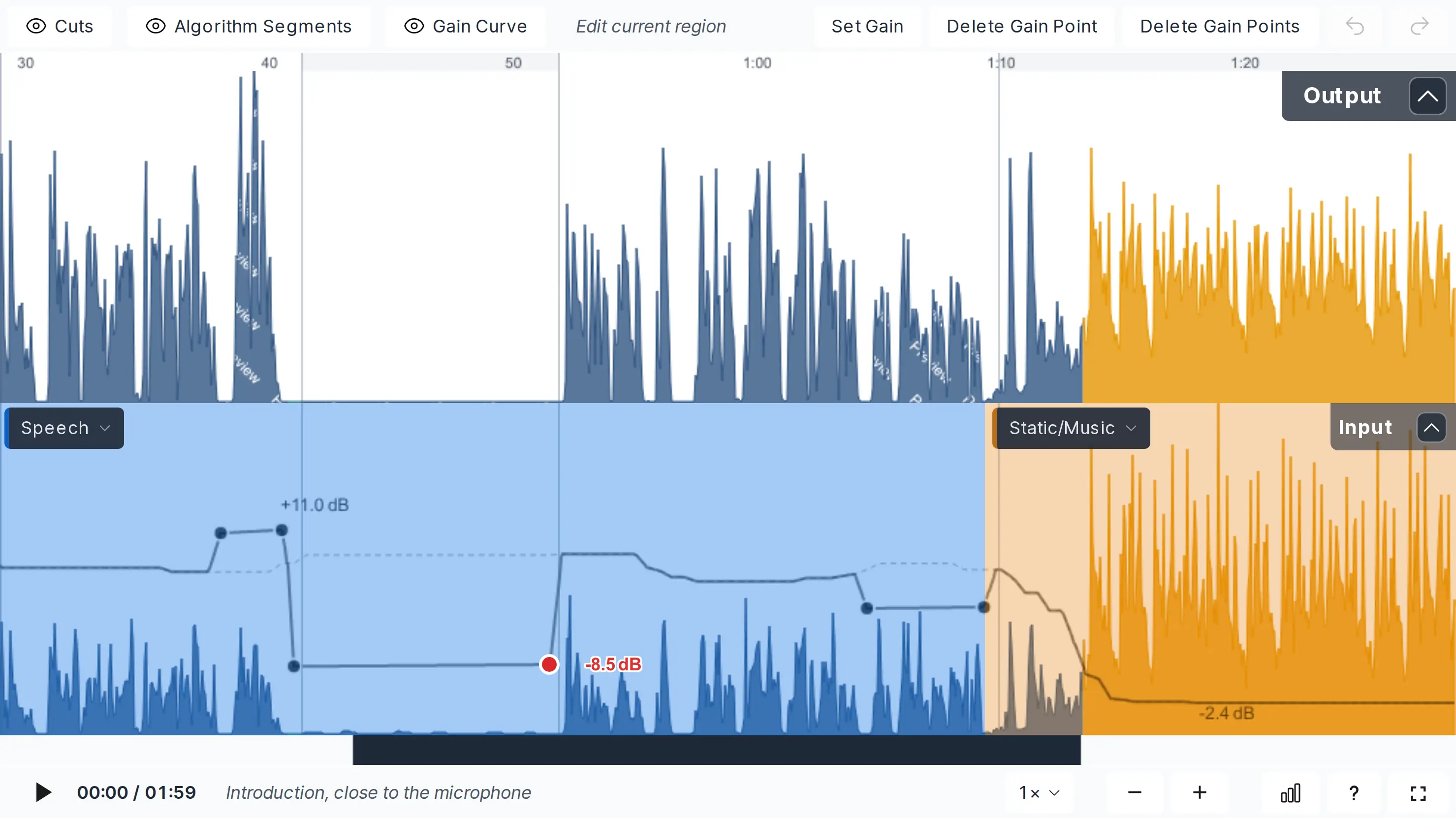
Gain curve in the input track with three edited regions: one segment raised, a quiet segment with breathing lowered by 8.5 dB.
The dashed line shows the original leveler curve, the output waveform above previews the result.
The curve is plotted over the waveform of each input track and is labeled in dB where it
peaks: positive values mean the leveler amplified a quiet passage, negative values
mean it attenuated a loud one. In a Multitrack Production
every input track carries its own curve.
What you see is an approximation of what the leveler does, so that you have something to
adjust: your gain points are applied on top of the leveler’s result, and everything outside
them is still handled by the leveler.
Note
To edit the gain curve, ensure it is visible by switching the “Show/Hide Gain Curve” toggle
from to .
The curve is only available if your production was processed with the Adaptive Leveler.
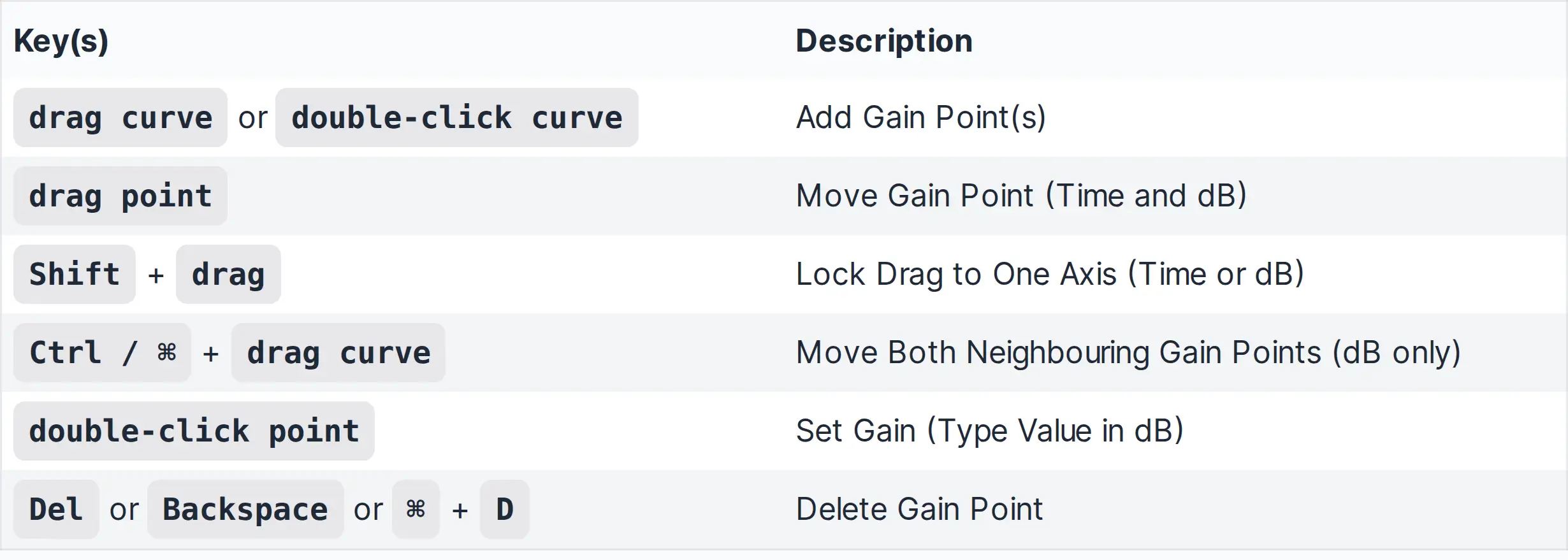
Gain points are created directly on the curve: drag the gain curve (or double-click it) to create a pair of gain points and raise or lower the region between them. Far from existing gain points this creates a pair, so that your change stays local and the curve returns to the automatic level afterwards; close to an existing gain point a single point is added instead, so you can shape ramps and steps. On touch devices, long-press the curve and choose [Add Gain Point].
A selected gain point can be dragged in time and level. Hold [Shift] to lock the drag to one axis,
or hold [Ctrl] ([⌘] on Mac) and drag the curve between two gain points to move both of them together (level only).
Double-click a gain point to type an exact value in dB.
The value is relative to the leveler curve: +3.0 dB means 3 dB louder than our leveler decided, 0.0 dB means no change.
Click [Delete Gain Point], or press [Del], to remove a selected gain point, or click
[Delete Gain Points] to discard all gain points of a track at once and return to the untouched leveler curve.
All actions are also available in the right-click menu (long press on touch devices).
The original leveler curve stays visible as a dashed line underneath your edits, so you always see how far you deviate from it. As with cuts and algorithm segments, you can [↺] and [↻] each editing step, but only until you leave the page. (For an overview of all gain controls and hotkeys, see the Controls and Shortcuts section.)
In singletrack productions, gain points are applied in realtime: you hear the change during playback of the output track,
and the output waveform is updated as well.
In multitrack productions a live preview of the mix is not possible, because the individual processed
output tracks are not exported by default. The editor shows a short hint on the output track instead,
and the result is audible after reprocessing.
We suggest the following workflow for gain curve editing:
Run your production with the Adaptive Leveler (see Adaptive Leveler Settings)
Open the production result page to see our audio editor, with the gain curve shown
Drag or double-click the gain curve in the input track to add gain points, and move them where you want them
Listen to the result (in singletrack productions live, while editing)
Finally, press [Apply Changes] or [Edit Production] to apply your changes (for free)
Important
When you are done editing, you must re-process your production (for free) by pressing [Apply Changes] at the bottom (or top) of the result page so that all your changes are applied to the output audio:
Re-Processing with [Edit Production] or [Apply Changes] is free and will not use additional credits!
Singletrack Algorithms Editor
First, we discuss the analysis data of our Singletrack Post Production Algorithms.
The audio levels of output and input files, measured according to the ITU-R BS.1770 specification, are displayed directly as the audio waveform. Only one file is played at a time. Click directly on the Input or Output track to unmute the file for playback:
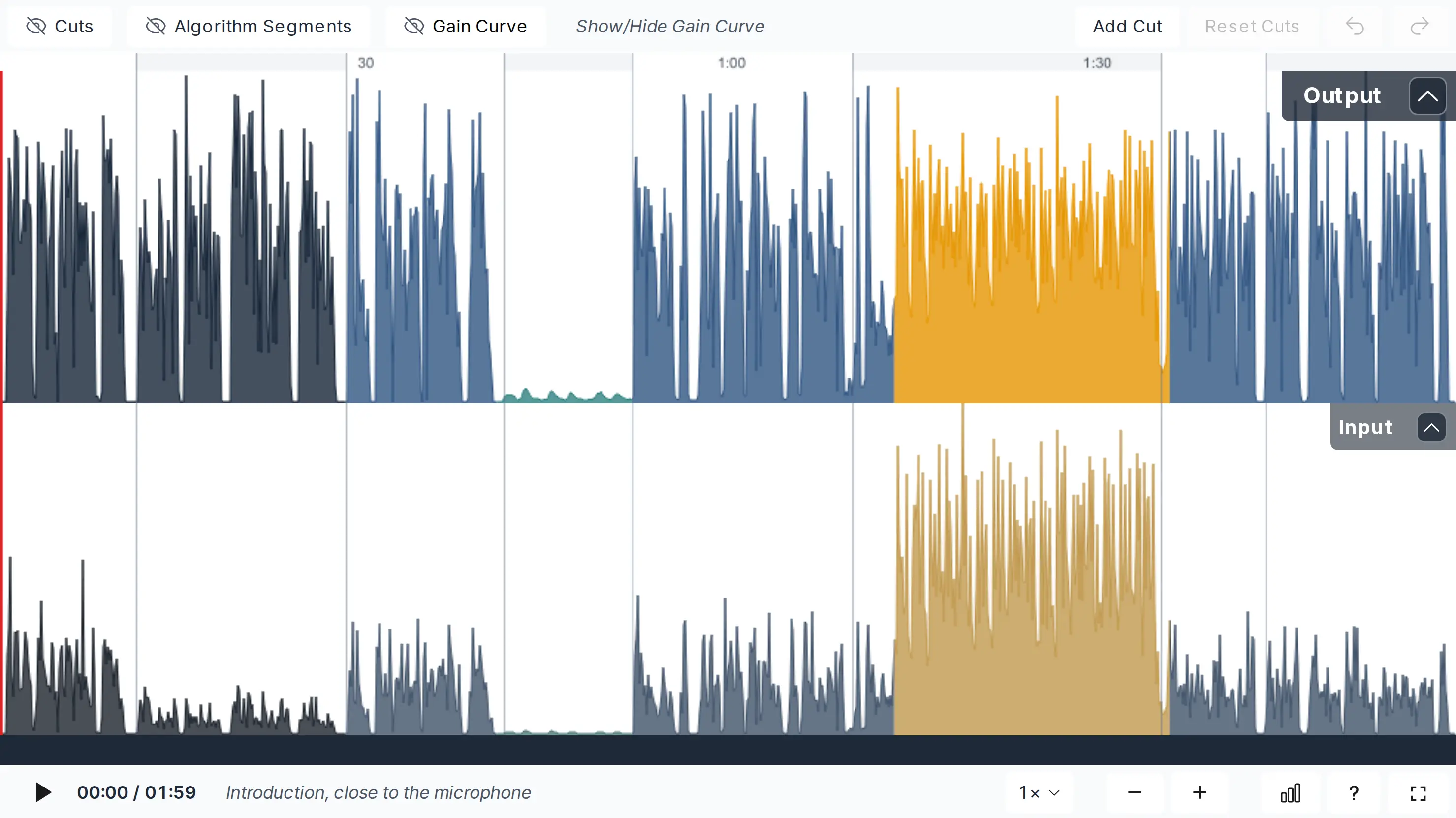
Singletrack Production with opened input file.
- Waveform Segments: Music and Speech (gold, blue)
Music and Speech segments are displayed directly in the audio waveform: Music segments are plotted in gold/yellow, speech segments in blue (or dark and light/turquoise blue).
- Waveform Segments: Leveler High and No Amplification (dark, light/turquoise blue)
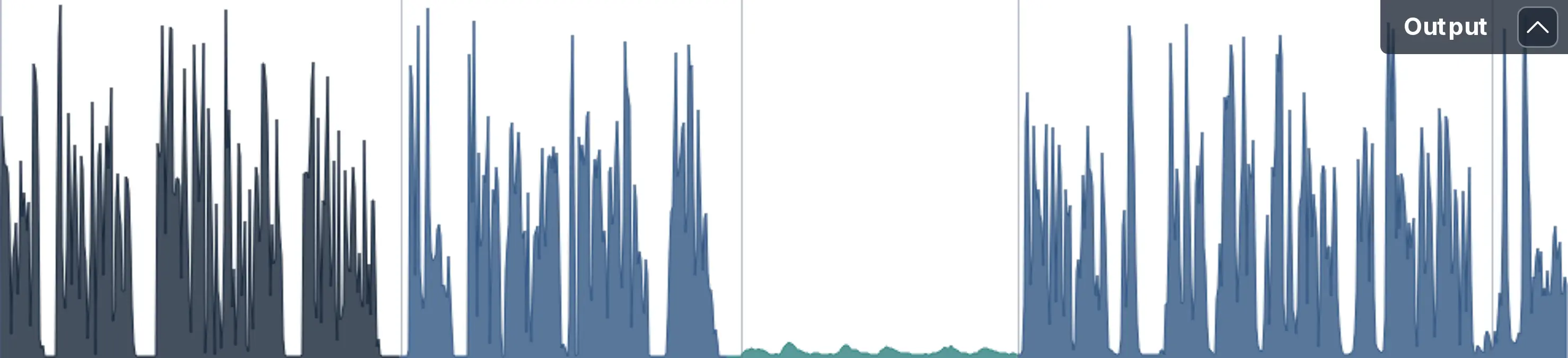
Speech segments can be displayed in normal, dark or light blue: Dark blue means that the input signal was very quiet and contains speech; therefore the Adaptive Leveler has to use a high amplification value in this segment.
In light/turquoise blue regions, the input signal was also very quiet, but our classifiers decided that the signal should not be amplified (breaths, noise, background sounds, etc.).- Cutting Regions:
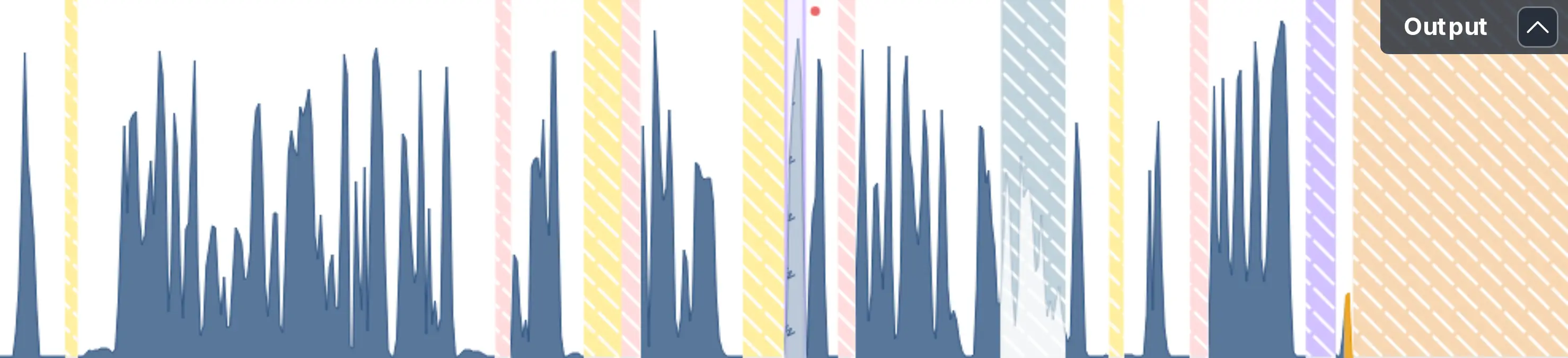
Depending on your settings for Automatic Cutting, events like silence, filler words, respiratory noises, or music can be automatically detected and cut out of your audio or video. The different cutting events are indicated by striped colors (yellow for silence, purple for filler words, red for respiratory noises, orange for music, and blue for manually added user cuts). Too colorful for your taste? Use the
dropdown to filter which cut categories are shown.- Algorithm Segments:
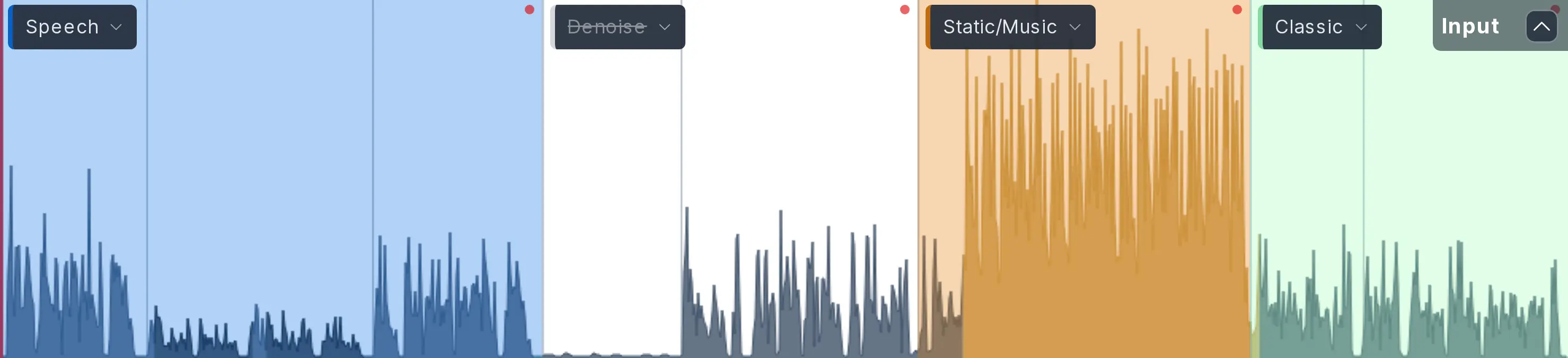
The denoising method of each algorithm segment is displayed by light background colors in the input track.
Blue for Speech Isolation with focus on pure speech, yellow for our Static Denoiser in segments with music, sound effects, etc., green for the Classic Denoiser that only removes broadband background noise and hum, or white for segements or tracks without noise reduction. You can also hide all algorithm segments with the button, if it’s too colorful for you.
Feel free to try the singletrack Auphonic Editor yourself with our Leveler and Noise Reduction audio examples.
Multitrack Algorithms Editor
If our Multitrack Post Production Algorithms are used, additional analysis data is shown in the Auphonic Editor.
The audio levels of the output and all input tracks are measured according to the ITU-R BS.1770 specification and are displayed directly as the audio waveform. Only one file is played at a time. Click directly into the track to unmute a file for playback:
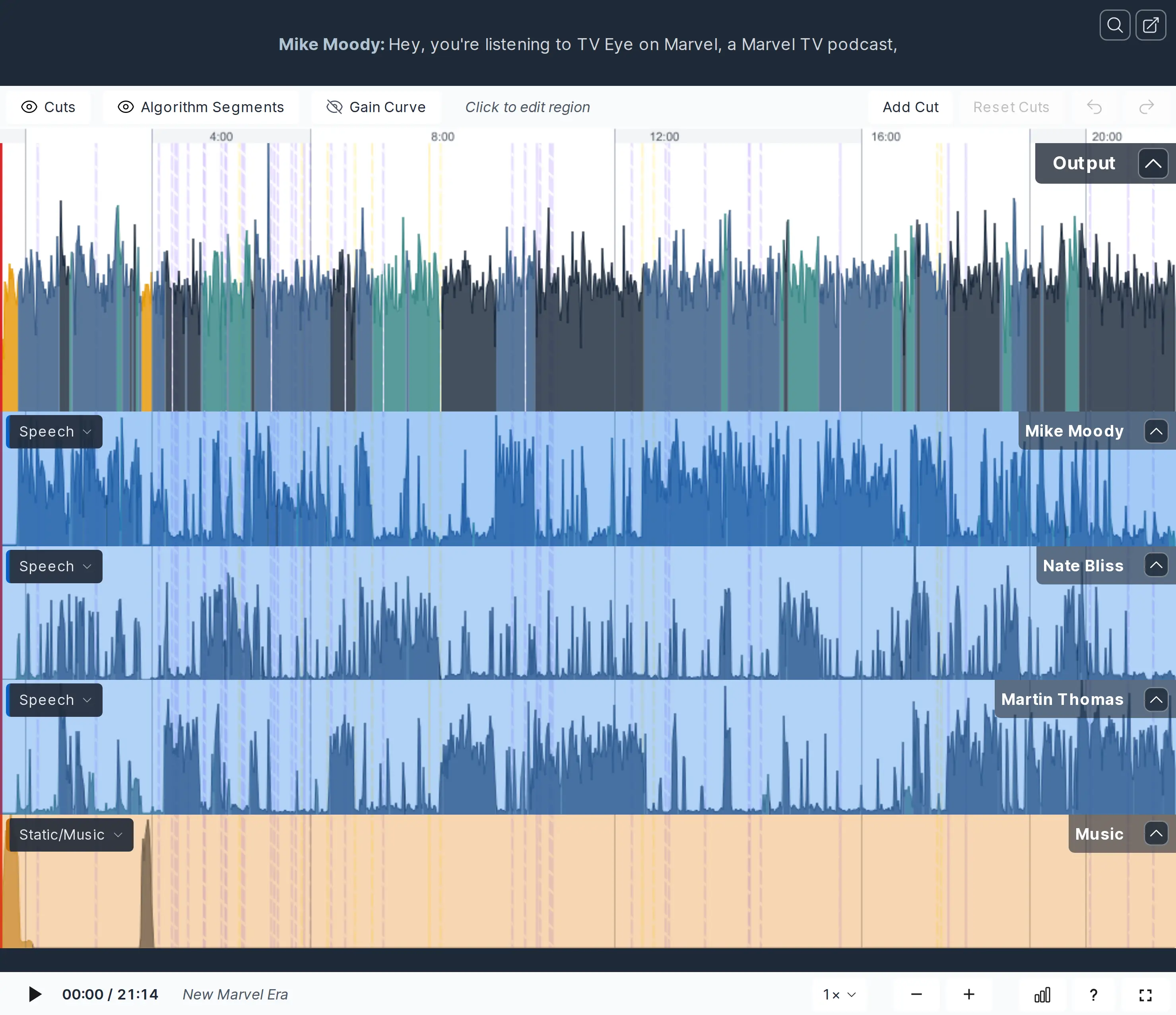
- Input Tracks: Waveform Segments, Cutting Regions and Algorithm Segments
Input tracks are displayed below the output file including their track names. The same data as in our Singletrack Algorithms Editor is calculated and plotted separately in each input track:
Waveform Segments with different colors: Music and Speech Segments (gold, blue), Leveler High/No Amplification (dark blue, light/turquoise blue)
Cutting Regions: Cutting Region Legend (striped yellow, purple, red, orange, blue)
Algorithm Segments: Algorithm Segment Legend (light blue, orange, green, white)
- Output Waveform Segments: Multiple Speakers and Music
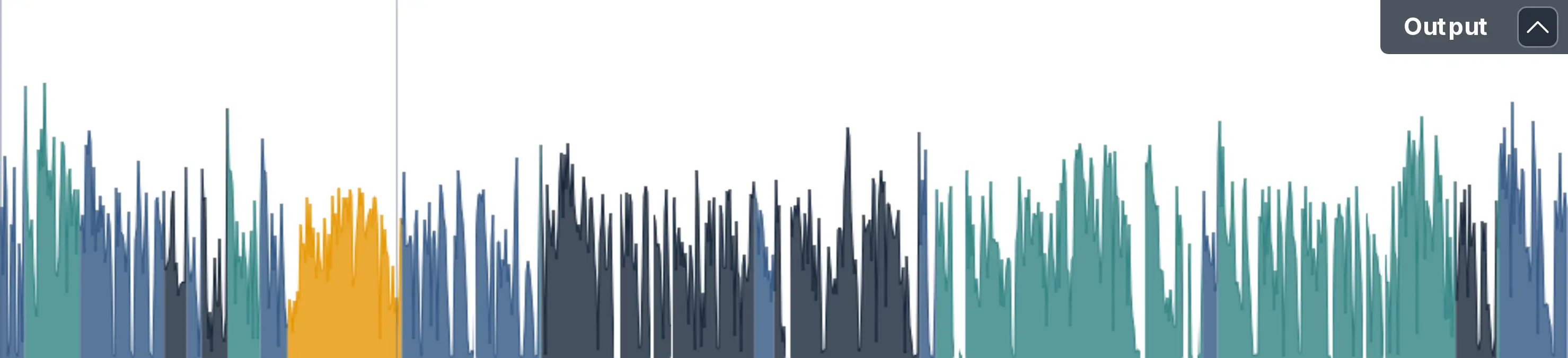
Each speaker is plotted in a separate, blue-like color - in the example above we have 3 speakers (normal, light/turquoise and dark blue) and you can see directly in the waveform when and which speaker is active.
Audio from music input tracks are always plotted in gold/yellow in the output waveform, please try not to mix music and speech parts in music tracks (see also Multitrack Best Practice)!
Feel free to browse our Multitrack Audio Examples page and listen for yourself.
Ducking, Background and Foreground Segments
Music tracks can be set to Ducking, Foreground, Background or Auto - for more
details please see Foreground/Background/Loop Settings and Automatic Ducking.
In the waveform, each active speaker is displayed in a different shade of blue,
while music segments are always shown in gold/yellow.
- Ducking Music Segments

In Ducking, the level of a music track is reduced if one of the speakers is active.
- Background Music Segments

Here the whole music track is set to Background and won’t be amplified even when speakers are inactive.
- Foreground Music Segments

If the whole music track is set to Foreground, its level won’t even be reduced when speakers are active.
You can try the ducking/background/foreground Auphonic Editor yourself: Fore/Background/Ducking Audio Examples.
Audio Search, Chapters Marks and Videos
- Audio Search and Transcriptions

If our Automatic Speech Recognition Integration is used, a time-aligned transcription text will be shown above the waveform. You can use the search field to find and jump to specific parts of the audio file.
See our Speech Recognition Audio Examples to try it yourself.
- Chapters Marks
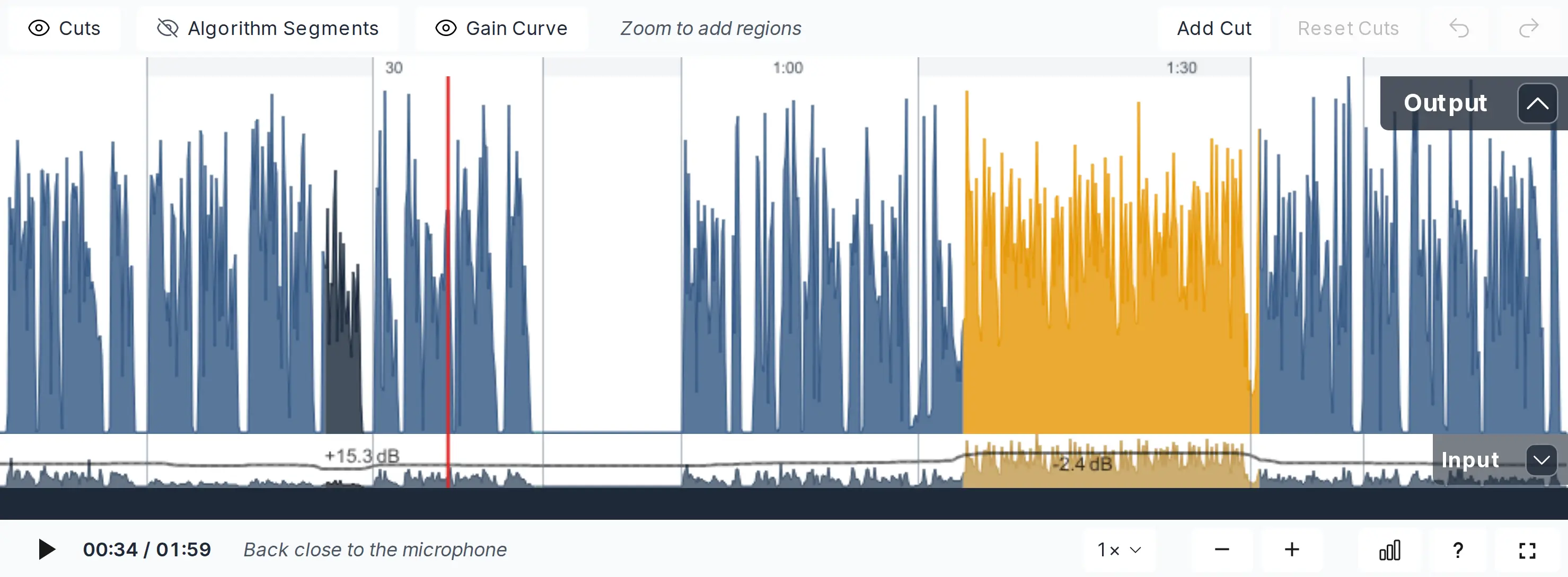
Chapter Mark start times are displayed in the audio waveform as grey vertical lines.
The current chapter title is written below the waveform in the Control Bar - see “Back close to the microphone” in the screenshot above.
- Video Display
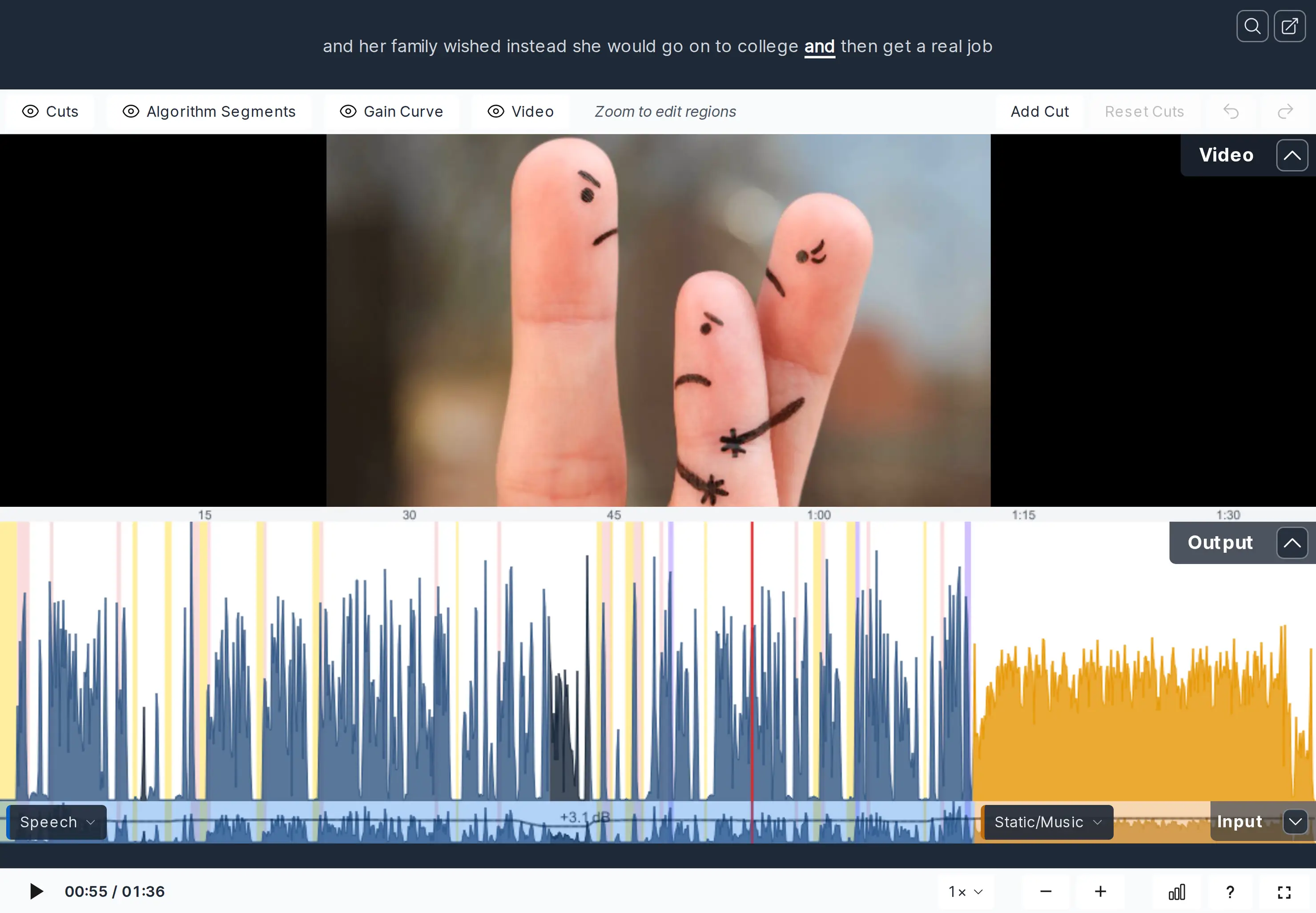
A video production with its video track above the output waveform, the folded input track and the transcription.
Please click on the screenshot to see it in full resolution.If you add a Video Format or Audiogram Output File to your production, the Auphonic Editor will also show a separate video track in addition to the audio output and input tracks. The video playback will be synced to the audio of output and input tracks.
Mobile Auphonic Editor
To make the best use of screen space on both Android and iOS devices, various responsive layouts were designed and now there is full usability on mobile devices: You can tap the waveform to set the playback position, use pinch-gestures to zoom in/out and view details. Swipe horizontally to scroll through waveform positions and vertically for multitracks, etc.
Unfortunately, the full-screen mode is not available for iOS mobile (thanks to Apple), but it works on Android devices and is a really great way to inspect and edit your productions using all the available screen space:
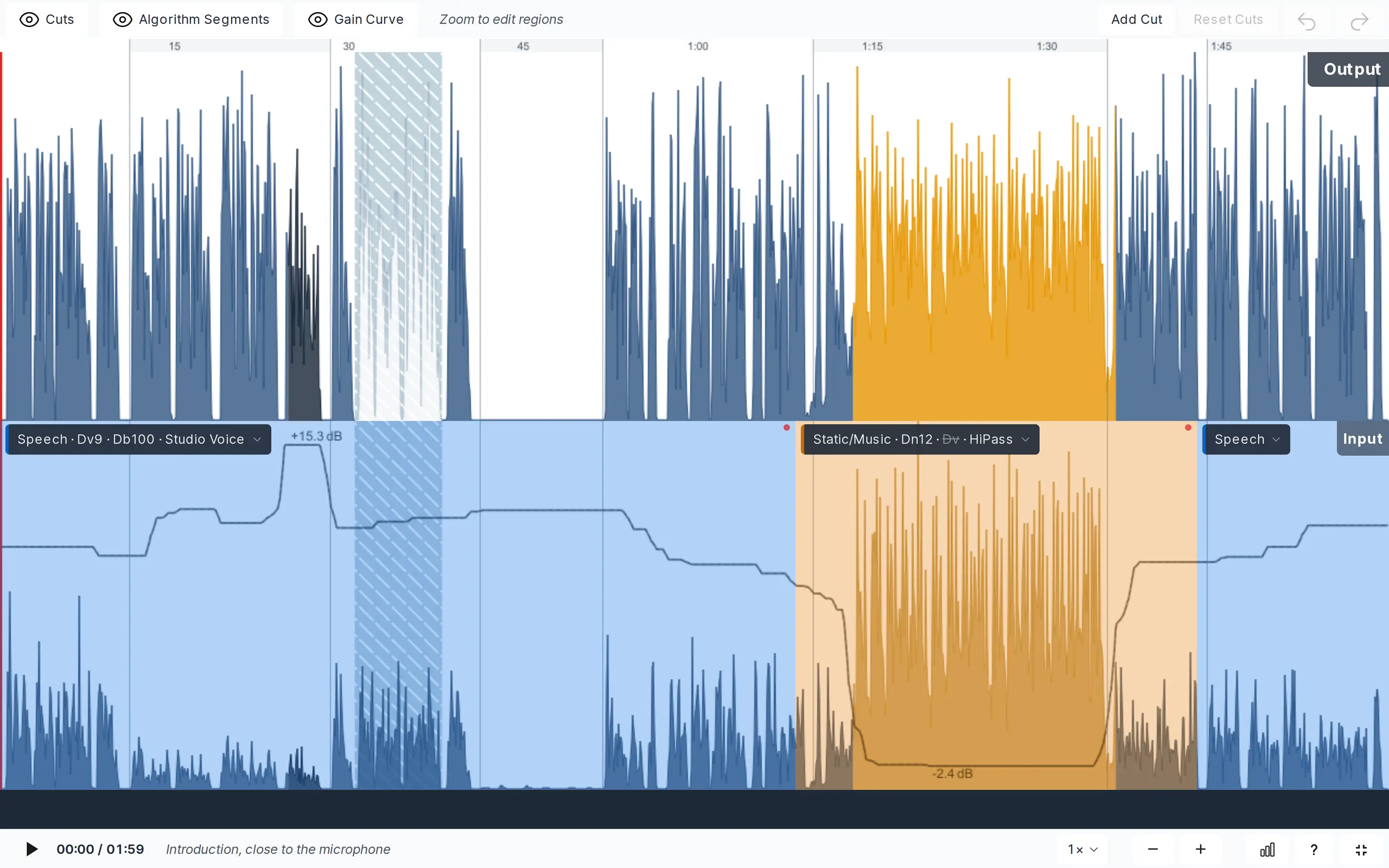
Auphonic Editor in horizontal full-screen mode on Android.
Audio Processing Statistics
The audio processing statistics show analysis details about input and output audio files.
Click on the [.ıI.] button in the Control Bar to display tables with statistics:
Singletrack Audio Processing Statistics
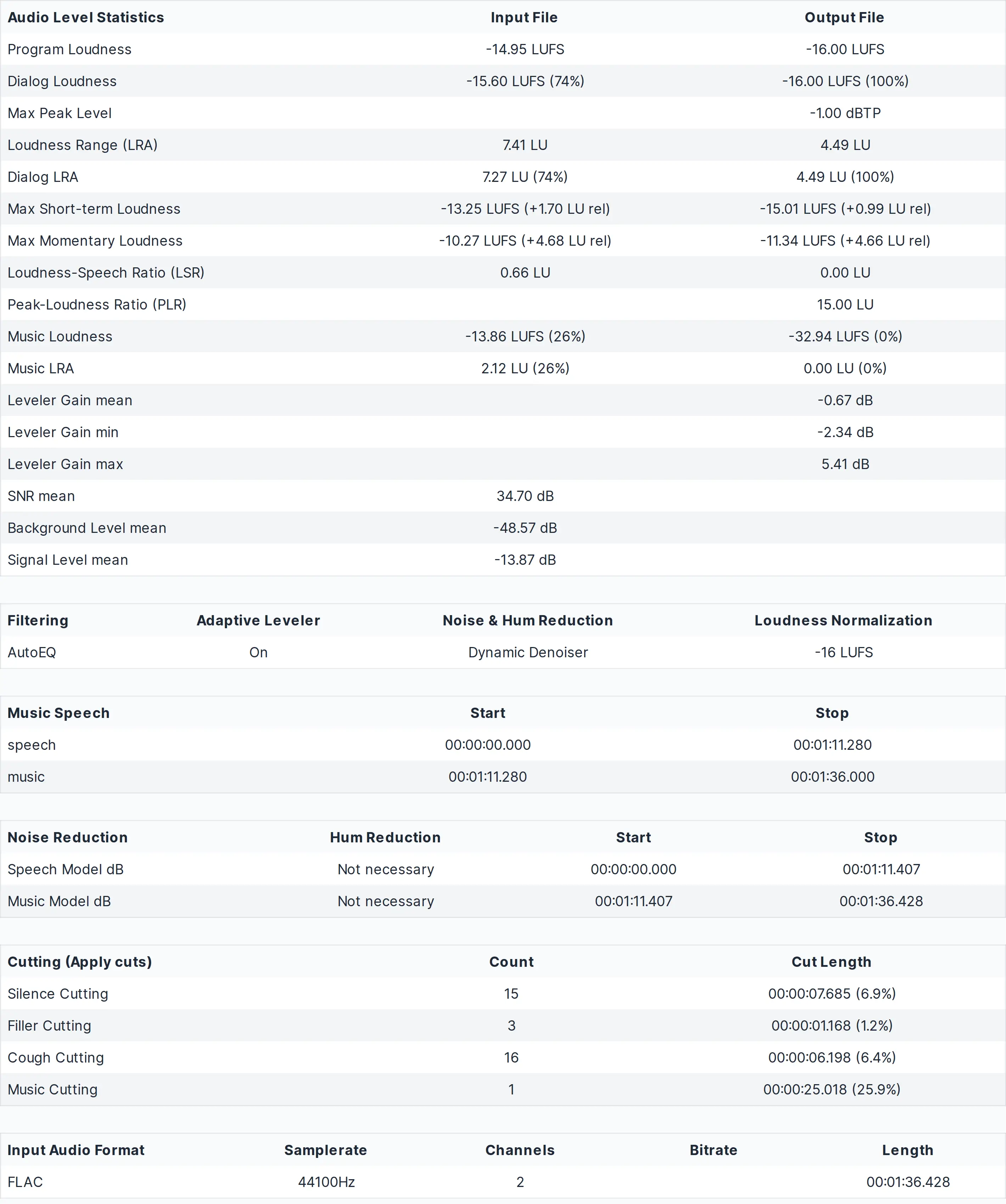
Auphonic processing statistics of a Singletrack Production.
- Audio Level Statistics Table
This table lists information about the loudness and levels of input and output audio files.
These statistics can be used to check compliance with Loudness Standards (Programme Loudness, Maximum True Peak Level, Loudness Range / LRA - see Loudness Measurement and Normalization) and certain regulations for commercials (Max Momentary Loudness, 400ms integration time; Max Short-term Loudness, 3sec integration time - see EBU TECH 3341, Section 2.2).
The table also provides loudness statistics for dialog and music parts (Dialog Loudness, Dialog LRA, Music Loudness, Music LRA and Loudness-to-Speech Ratio / LSR - see Dialog Loudness Normalization for Cinematic Content).
Furthermore, it shows how much our Adaptive Leveler changes levels (Leveler Gain mean, min, max) and lists statistics about input audio signals (Signal-to-Noise Ratio/SNR, Background Level, Signal Level).- Algorithms Overview Table
Shows processed settings for Filtering, Adaptive Leveler, Noise & Hum Reduction, and Loudness Normalization
- Music Speech Segments Table
Lists music and speech segments of a production. Very short speech/music segments are not displayed.
- Noise and Hum Reduction Table
Lists how much Noise Reduction and/or Hum Reduction was used in which segment of the output audio file.
- Cutting Table
Displays how many Cutting Regions have been detected or user-added and their cumulative length in total and in percent.
- Input Audio Format Table
Shows details about the input audio format (Format, Samplerate, Channels, Bitrate, Length).
Multitrack Audio Processing Statistics
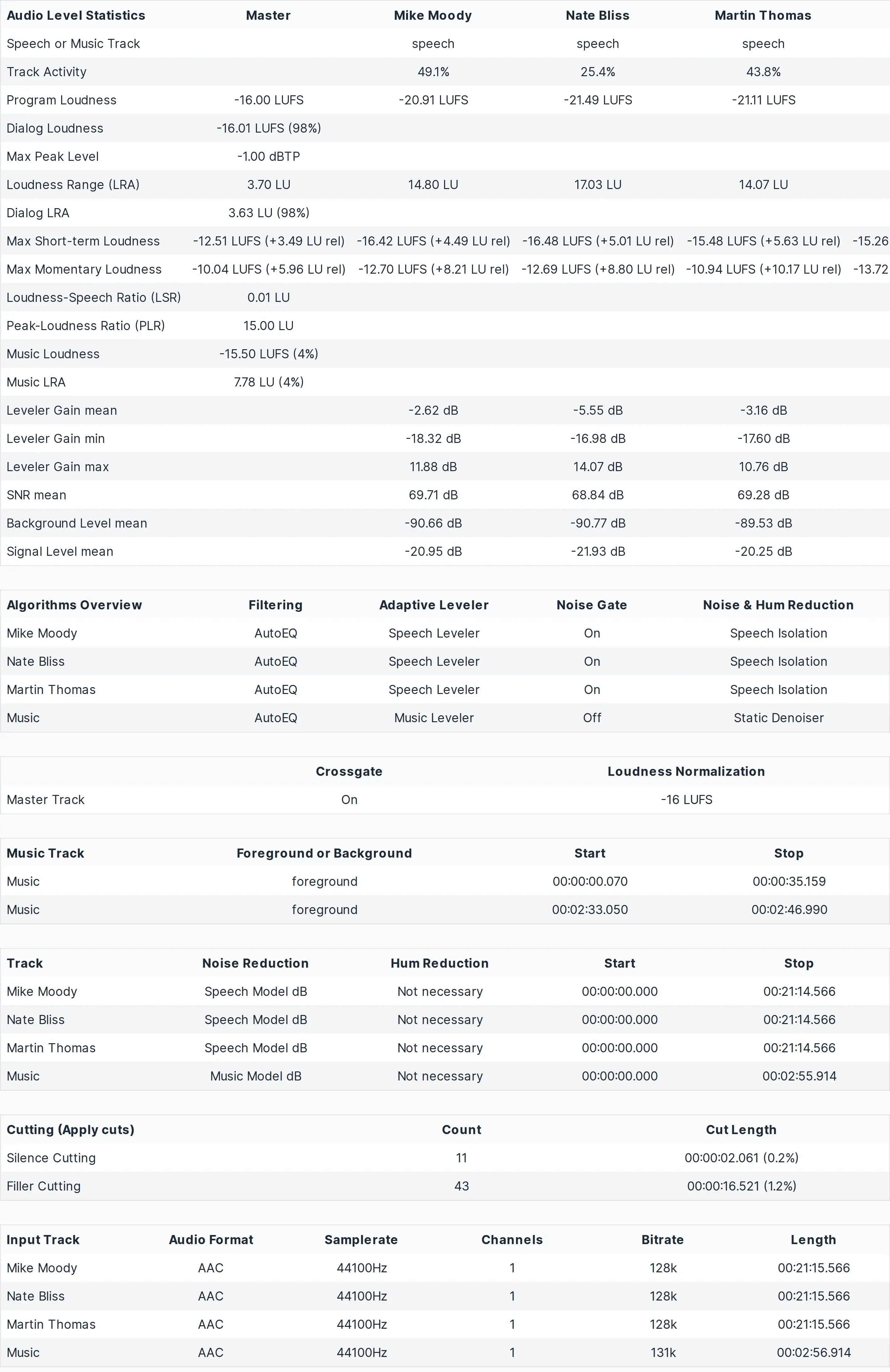
Auphonic processing statistics of a Multitrack Production.
- Audio Level Statistics Table
Lists information about the loudness and levels of all input files/tracks (Mike Moody, Nate Bliss and Music in the screenshot above) and the output audio file (Master). Values per track are the same as in our Singletrack Audio Processing Statistics.
Additionally, it shows if a track was classified as music or speech (Speech or Music Track) and the activity in percent of each speaker/track.- Algorithms Overview Table
Shows processed settings for Filtering, Adaptive Leveler, Noise Gate, and Noise & Hum Reduction
- Music Track Segments Table
Lists active segments in each music track. Each segment can be in foreground, background or ducking - please see Foreground/Background/Loop Settings and Automatic Ducking.
- Noise Reduction Table
Lists how much Noise and/or Hum Reduction was used in which segments of each track.
- Input Track Audio Format Table
Shows details about input audio files/tracks (Format, Samplerate, Channels, Bitrate, Length).
Controls and Shortcuts
Playback Controls

Control bar of the Auphonic Editor with scrollbar, play/pause button,
current playback position, production length and chapter title on the left.
On the right, buttons to zoom in/out, toggle statistics, show legend and switch to full-screen mode.
- Seek in Audio Files
Click or tap inside the waveform to seek in files. The red playhead shows the current audio position.
- Play Audio
Click [⯈] or press [SPACE] on your keyboard to start playback at the current position of the red playhead.
- Zoom In/Out
Use the zoom buttons ([+] and [-]), the mouse wheel or zoom gestures on touch devices to zoom in/out the audio waveform.
- Scroll Waveforms
If zoomed in, use the scrollbar or drag the audio waveform directly with your mouse or by sliding on your touch device.
- Show Stats
Use the [.ıI.] button to show or hide the Audio Processing Statistics of a production.
- Show Legend
Click the [?] button to show or hide the legend, which describes details about the visualizations of the audio waveform.
- Full-screen Mode
Toggle the [ ⛶ ] button (bottom right) to switch to full-screen mode.
In full-screen mode all tracks are shown in detail using your whole screen and the controls for playback, zooming, cutting, text search, etc. are all still working.
(Unfortunately full-screen mode is not available for iOS mobile devices.)
General Editing Controls

- Show/Hide Cuts
What this control does depends on your production: if more than one cutting algorithm is activated, it is a filter - click
and pick which cut categories
(Silence, Filler, Cough, Music, User) are drawn on the waveform, individually or
all at once.
With a single cutting algorithm (or none) there is nothing to filter, so it stays a plain toggle that hides or shows all cuts, as before.- Show/Hide Algorithm Segments
Toggle this button to hide
or show the algorithm segments in the input track.- Show/Hide Gain Curve
Toggle this button to hide
or show the gain curve in the input track.- Undo
Revert your last edit (cut, algorithm or gain, even if that layer is hidden) by clicking the [↺] “undo” button. (Works only until you leave the production page.)
- Redo
Reapply your reverted action (cut, algorithm or gain, even if that layer is hidden) by clicking the [↻] “redo” button. (Works only until you leave the production page.)
Cut Editing Controls

- Add Cut
Insert a new cut at the selected position by clicking [Add Cut].
- Reset Cuts
Restore all cuts to their original auto-classified positions by clicking [Reset Cuts].
- Deactivate Cut
Disable the selected cut by clicking [Deactivate Cut] without removing it.
- Delete Cut
Remove a cut by clicking [Delete Cut]. (Only appears for self-added cuts.)
- Activate Cut
Enable a previously deactivated cut by clicking [Activate Cut]. (Button appears, when an deactivated cut is selected.)
- Reset Cut
Enable a previously deactivated cut by clicking [Reset Cut]. (Button appears, when an edited cut is selected.)
Algorithm Segment Editing Controls

- Split Segment
Start a new algorithm segment at the selected position by clicking [Split Segment].
- Delete Segment
Remove a selected segment by clicking [Delete Segment]. (One last segment cannot be deleted, only set to “Off”.)
- Reset Track
Restore all algorithm segments of the track to their original auto-classified methods and positions by clicking [Reset Track].
The denoising and filtering method of a segment is set in its settings: click on the label of the selected segment.
Gain Curve Editing Controls

- Set Gain
Type an exact value in dB for the selected gain point by clicking [Set Gain] (relative to the leveler curve).
- Delete Gain Point
Remove the selected gain point by clicking [Delete Gain Point].
- Delete Gain Points
Remove all gain points of the track and restore the original leveler curve by clicking [Delete Gain Points].
Gain points themselves are created and moved directly on the gain curve, see Gain Curve Editing.
Keyboard Shortcuts
All shortcuts are also listed in the editor itself: click the [?] button in the control bar and select Shortcuts.
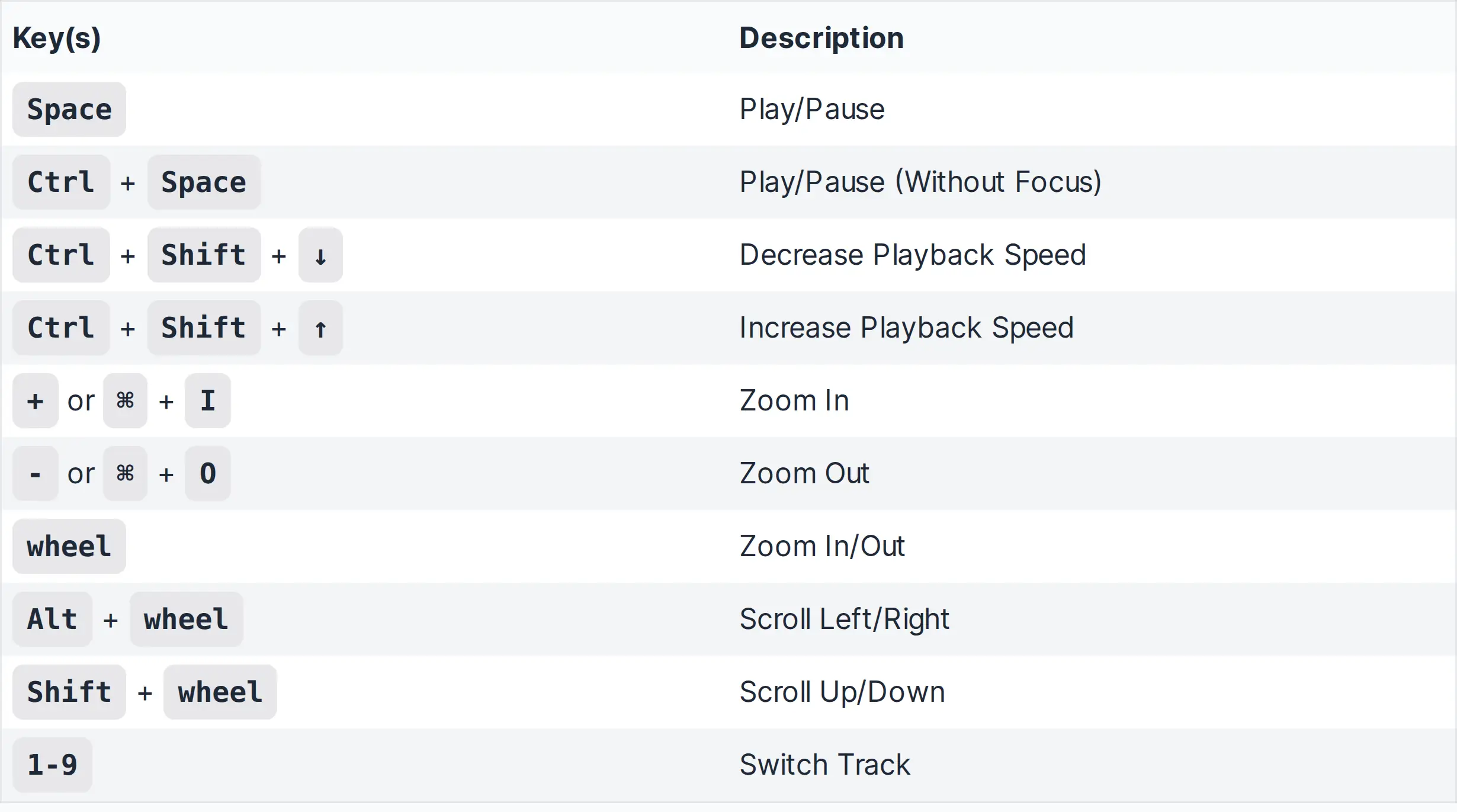
- Hotkeys for Playback:
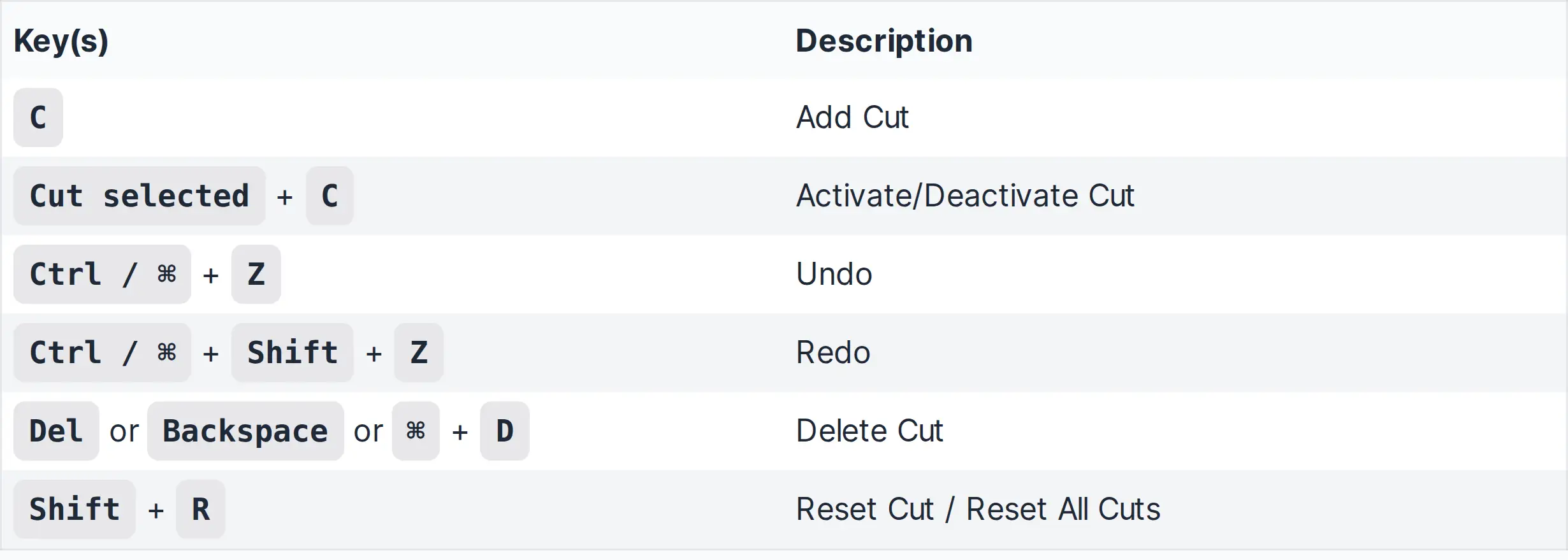
- Hotkeys for Cutting:
- Hotkeys and Gestures for the Gain Curve: