Many video podcasts, YouTube videos and interviews are edited in DaVinci Resolve. With our new Auphonic plugin for DaVinci Resolve Studio, you can now send audio tracks or clips from your timeline to Auphonic and get the processed audio back on a new track, directly below the original and in sync. No exporting, no uploading by hand, and no lining up the result again.
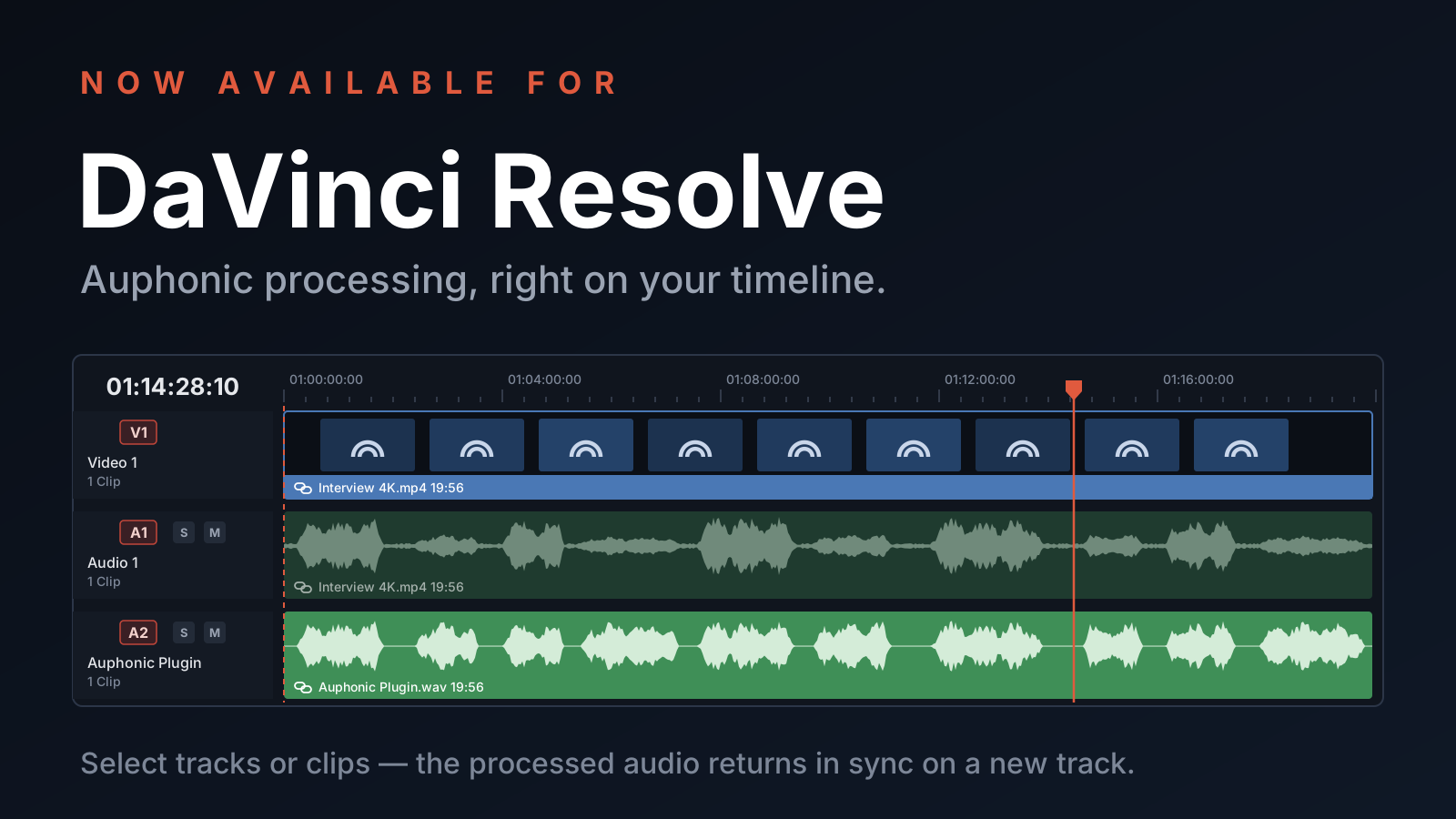
From Your Timeline to Processed Audio and Back
Until now, using Auphonic in a video edit meant several detours: export the audio from DaVinci Resolve, upload it to Auphonic, wait for the production, download the result, import it into your project, and place it on the timeline at exactly the right frame.
The plugin does all of this for you, inside DaVinci Resolve. It works on Windows, macOS and Linux and gives you all Auphonic audio algorithms: the Adaptive Leveler, Noise Reduction, Loudness Normalization for YouTube, podcasts or broadcast, filtering, and everything else you have set up in your Auphonic Presets.
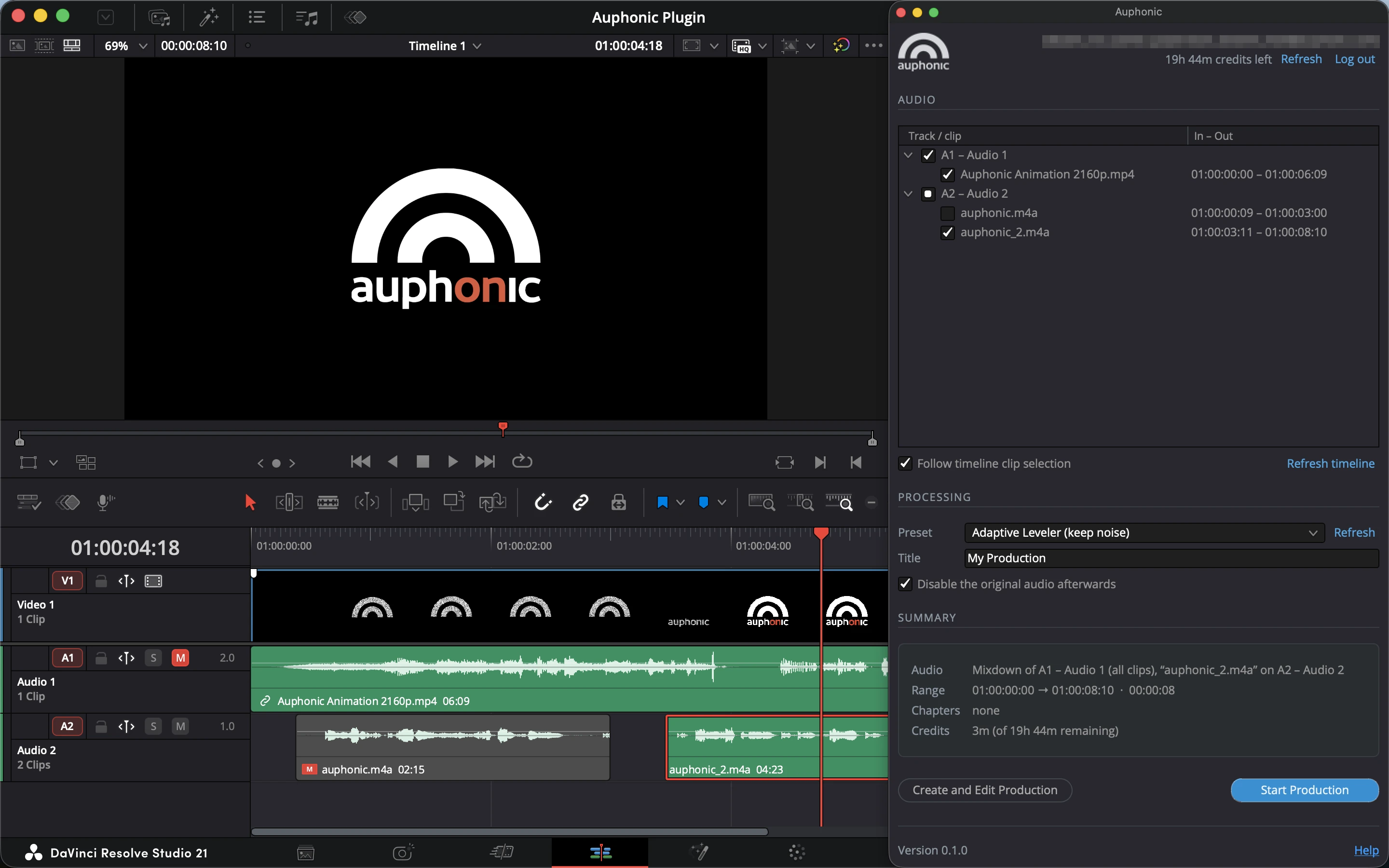 The Auphonic plugin next to a DaVinci Resolve timeline.
How It Works
Open your timeline and start the plugin from Workspace → Scripts → Auphonic:
- Choose the audio: tick whole tracks or single clips. With Follow timeline clip selection, the clips you select in the timeline are ticked automatically — select a video clip, and its linked audio is ticked. For whole tracks, only the part between your in and out points is processed. Several tracks or clips are processed together as one mixdown.
- Choose a preset: pick one of your own Auphonic Presets or one of our ready-made presets.
- Chapters from your markers: timeline markers become Chapter Marks of the production.
- Check the summary: it shows what will be processed, its length, the number of chapters, and the credits the production will use.
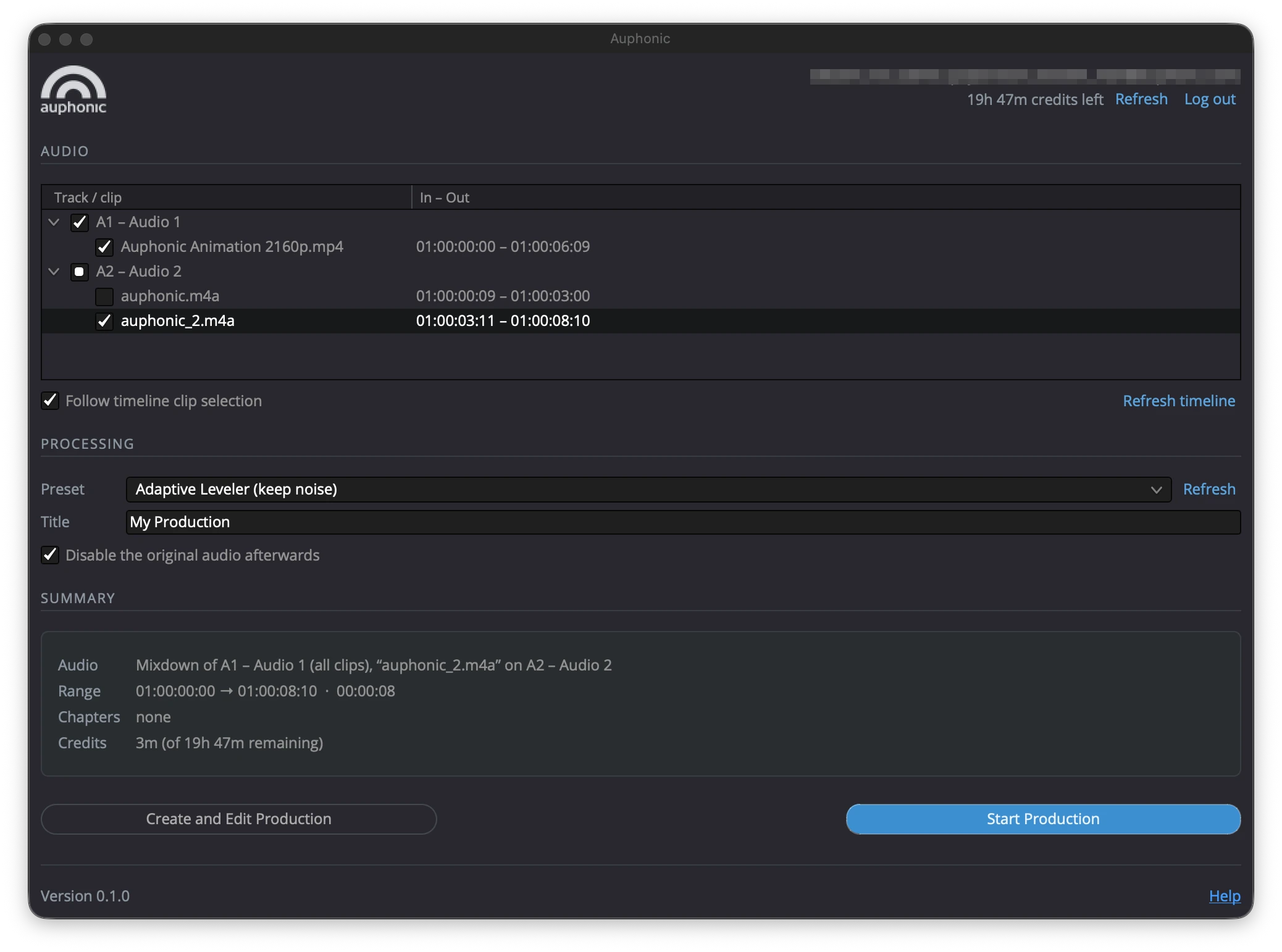 Choose the tracks or clips, a preset and a title, then click Start Production.
Click Start Production, and the plugin renders the selected audio as a lossless 24-bit FLAC file, uploads it, processes it on Auphonic, and downloads the result. The processed audio is imported into a Media Pool bin called Auphonic and placed on a new audio track directly below the original, starting at exactly the same frame. If you like, the plugin mutes the original audio afterwards, so you can go straight on with your edit and export.
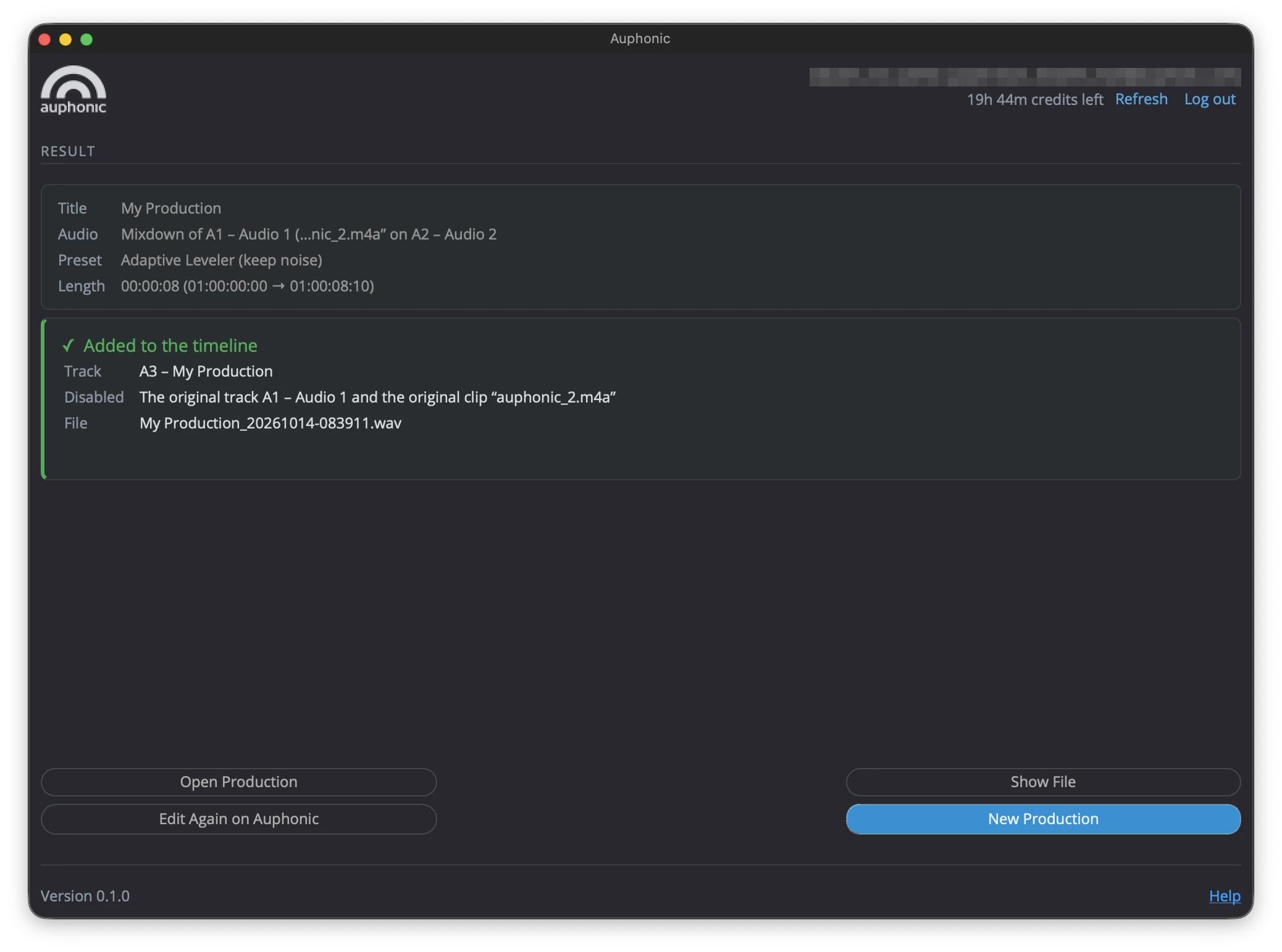 The processed audio is on the timeline, in sync with your video.
Want to change a setting for this one production first? Click Create and Edit Production instead: the production opens on auphonic.com, where you can adjust everything before you start it. And if you're not happy with the result, Edit Again on Auphonic lets you change the settings and process it again; the plugin puts the new result in place of the previous one, without rendering or uploading anything again.
Like Our Adobe Add-ons, Now for DaVinci Resolve
If you edit in Adobe Premiere Pro or Audition, you might already know our Adobe Add-ons. The DaVinci Resolve plugin follows the same idea: you stay in your editor, choose what to process and a preset, and the processed audio comes back into your project, in sync. Like the Adobe Add-ons, several selected tracks or clips are processed together as one mixdown.
Get the Plugin
The plugin itself is free; processing uses your regular Auphonic credits, like any other production. With a free Auphonic account, you get 2 hours of processing per month (with a short Auphonic jingle); productions with paid credits have no jingle.
You need DaVinci Resolve Studio 19, 20 or 21. The free edition of DaVinci Resolve is not supported: since Resolve 19.1, it doesn't allow scripts to open windows, and since Resolve 21.1, it doesn't run Python scripts at all. On Resolve Studio 21.1 and newer, there is nothing else to install, as Resolve comes with its own Python; on older Studio versions, you need Python 3.10 or newer from python.org.
- Download the Auphonic plugin for DaVinci Resolve.
- In DaVinci Resolve Studio, open the Console (Workspace → Console), drag the installer onto it and click Install. Dropping it onto the Nodes area of the Fusion page works too. No admin rights needed, and no restart.
- Start the plugin from Workspace → Scripts → Auphonic and log in with an Auphonic API key. With Remember me, the key is stored encrypted in your system's password storage, so you only enter it once.
For all details, updating, and troubleshooting tips, please see the Auphonic Plugin for DaVinci Resolve help page.
Feedback
We hope the plugin saves you a few round trips in your next video edit! We would love to hear how it works in your projects and what you would like to see next. If you have feedback, questions, or ideas, please contact us or write to support@auphonic.com.