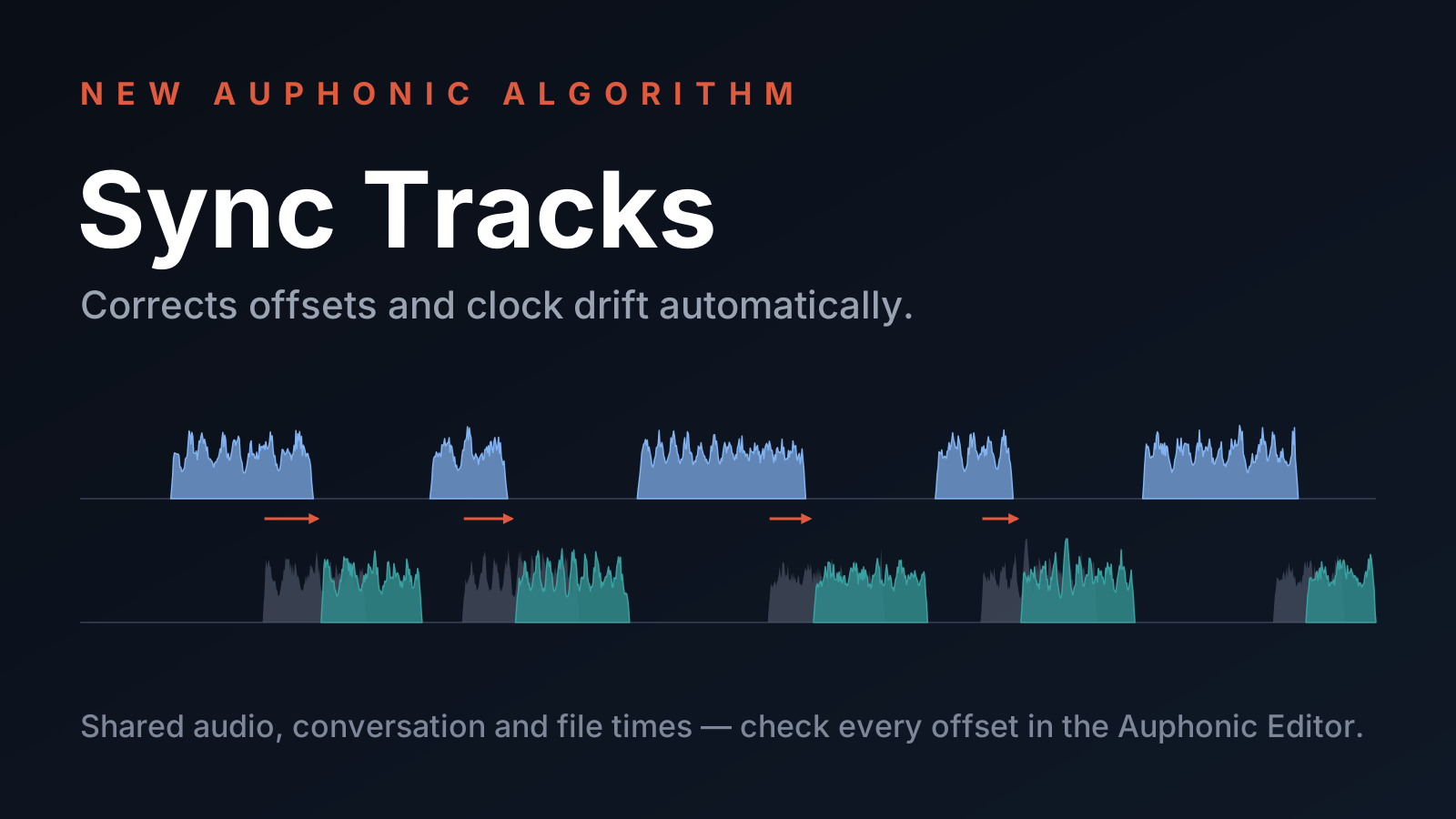
Our new Sync Tracks model aligns all tracks of a multitrack production automatically, before any other algorithm runs: it corrects different start times and the clock drift between recording devices. Where it is not sure, the Auphonic Editor offers the most likely offsets, so that you can listen to the tracks with different shifts and pick the right one.
Why Tracks Get Out of Sync
All tracks of a multitrack production are mixed in parallel, so they have to be aligned to each other. That is easy if everything was recorded on one device. But in many productions it isn't:
- Double-enders and remote interviews: every speaker records their own microphone locally, and each recording starts whenever its record button was pressed.
- Separate recorders or cameras: a field recorder for the audio, a camera for the video, a backup recorder — all started at different times.
- Export mistakes: even tracks from one session can end up out of sync. If you forget to insert silence at the start of your tracks in Audacity, the exported files no longer line up — and other editors have similar catches (see our Multitrack Best Practices).
Different start times are only half of the problem. The clocks of two devices never run at exactly the same speed (clock drift), so the tracks also drift apart during the recording, often by 100 to 300 milliseconds per hour. An offset that is right at the start can be noticeably wrong at the end.
The result in the mixdown: doubled voices, echoes, and answers that come too late or overlap the question. Our other multitrack algorithms — the Mic Bleed Remover, the Adaptive Noise Gate, and the Multitrack Adaptive Leveler — also work better when they know which speaker is active at which moment in all tracks. Until now, you had to align your tracks by hand in an audio editor before uploading them — tedious work, especially when you also have to correct the drift.
How Sync Tracks Works
Sync Tracks looks for clues that tell it how the tracks belong together:
- Shared audio: if the tracks contain some of the same sound — the crosstalk (bleed) of other speakers in the same room, the speaker echo of a remote call, or music played in the room — they can be aligned within a few milliseconds, including the clock drift.
- Conversation: in remote recordings, where everyone wears headphones, the tracks often share no audio at all. Then Sync Tracks uses the conversation itself: people rarely talk at the same time, so at the right offset the speech of one track fits into the pauses of the other.
- Hints from the files: recording times in file names (like
20261105_140322), in the metadata of BWF (WAV) files, or the creation time of MP4, MOV, Matroska, and WebM files, and files that end together.
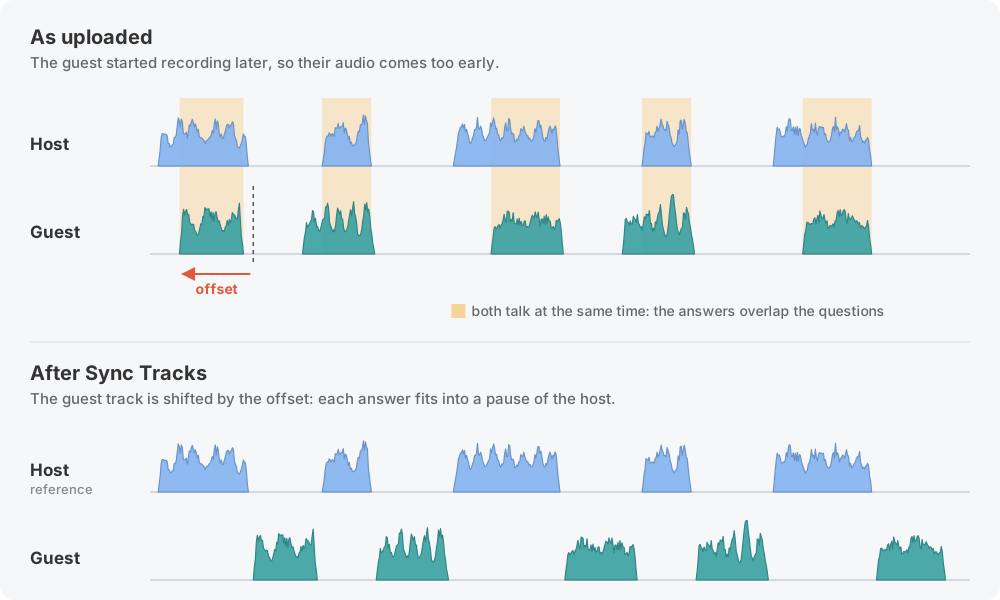 How Sync Tracks aligns a remote guest by the conversation.
All these clues go into a new model we built for Sync Tracks: it calculates the shift of each track against a reference track, and its clock drift if the tracks share audio. Sync Tracks calculates one shift per track: if a track was edited on its own (a cut or an insertion in only one track), the tracks can only be in sync on one side of the edit, so please upload unedited tracks. For all details, see the Sync Tracks documentation.
How to Use Sync Tracks and Check the Results
Switch on Sync Tracks in the Master Algorithms section of your multitrack production (or preset) and start the production. The Sync Tracks table in the processing statistics then shows for each track whether it was synced, how far it was shifted, and how much drift was corrected.
Then listen whether your tracks are aligned — especially in short productions without shared audio, where a few minutes of conversation are often not enough for Sync Tracks to be sure. In the Auphonic Editor, the Sync Tracks menu lets you play all input tracks together and show the unsynced tracks, as uploaded, to compare them with the synced ones:
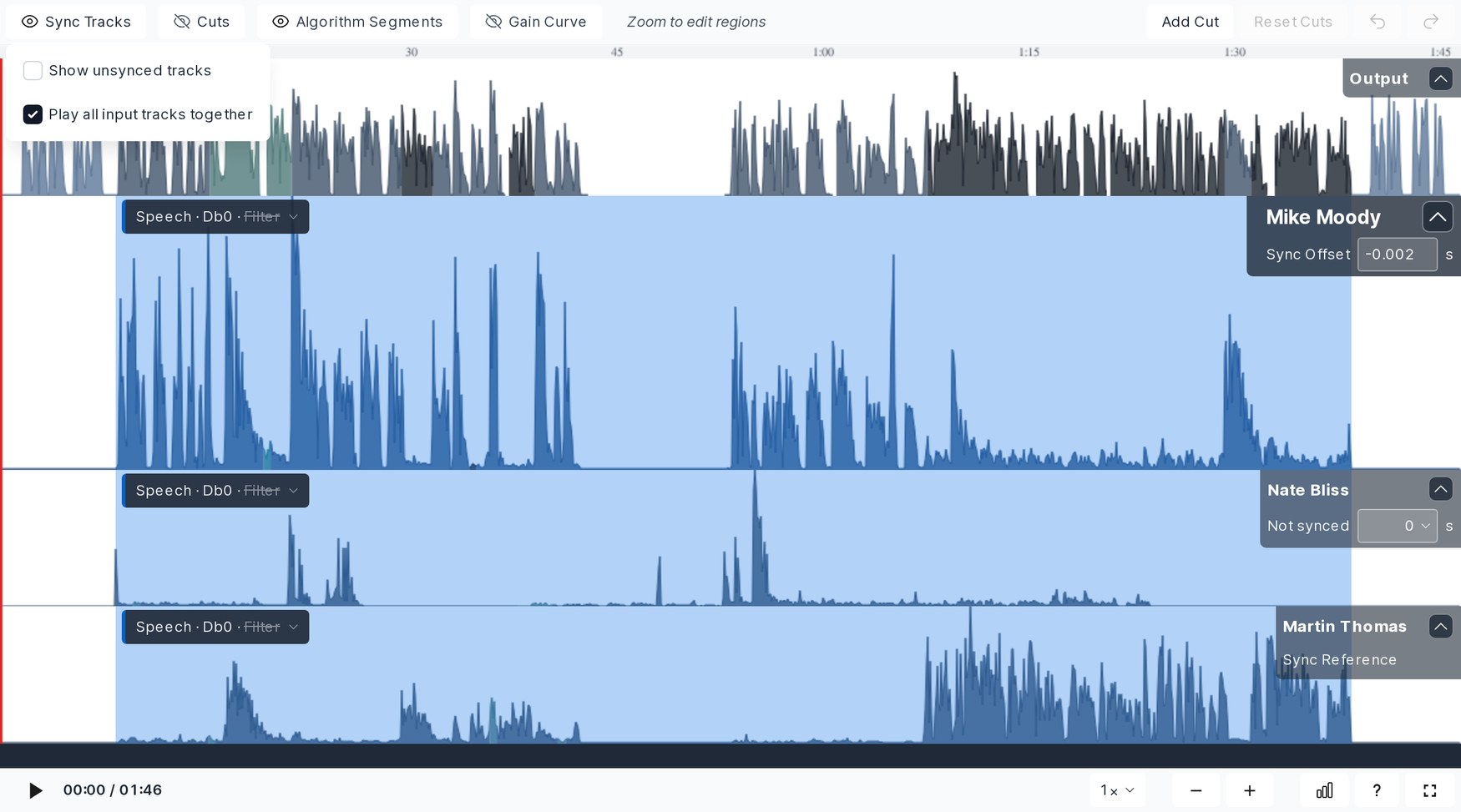 Show unsynced tracks: the input tracks as uploaded, before Sync Tracks moved them.
To move a track, change its Sync Offset under the track name: the track moves right away, so you can listen to it with different shifts. Where Sync Tracks is unsure, you don't have to search yourself: it offers the most likely offsets, best first.
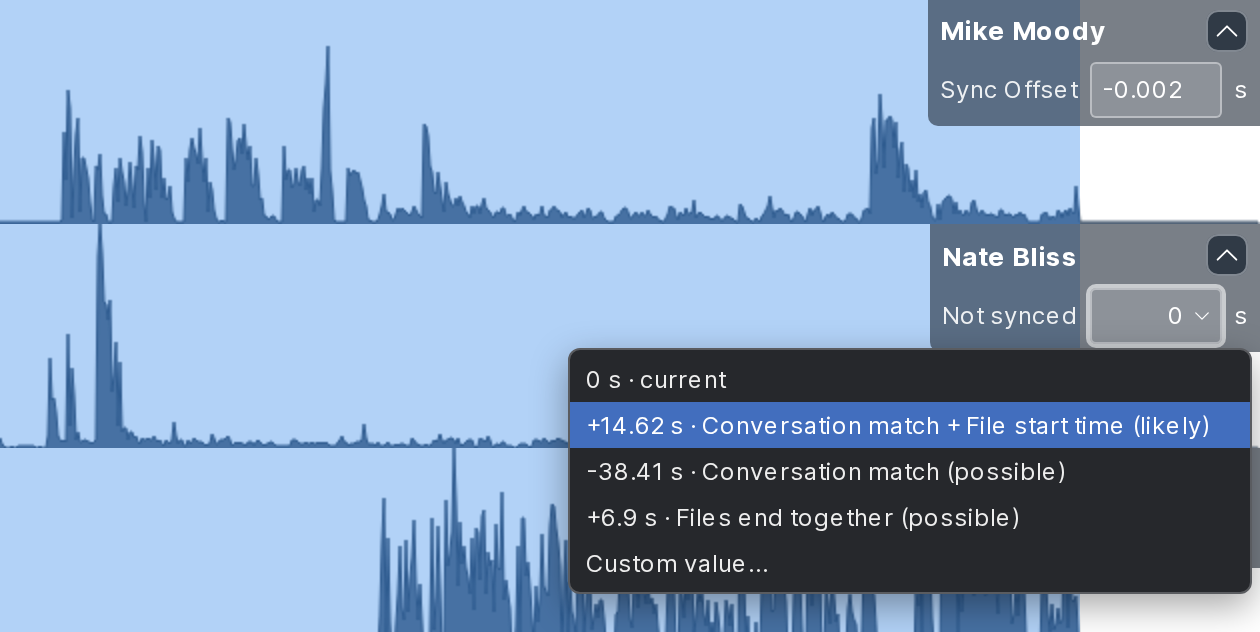 The offsets offered for a track that could not be synced.
Each offset says where it comes from (the conversation, the recording times of the files, or files that end together) and how sure Sync Tracks is: confirmed, likely, or possible. Pick one, listen, and press Apply Changes to process your production with it.
Sync Tracks in the API, CLI, and Your Integrations
Sync Tracks is not limited to our web interface: if you build your own workflows or integrations on top of Auphonic, you can use it there as well.
- API: set the master algorithm
"sync_tracks": true. The result of each track is in the production statistics, and"keep_offset": trueplaces a track at your own offset (see Adding offsets to Tracks). - Auphonic CLI:
add
--sync-tracksto your multitrack productions. - Presets: switch on Sync Tracks in a multitrack preset, and every production created from it is synced automatically, whether you start it in the web interface, via the API, or with the CLI.
Conclusion
Aligning tracks by hand is one of the most tedious steps of a multitrack production. Sync Tracks does it automatically — by shared audio, by the conversation, and with the recording times of your files — and where it is unsure, the Auphonic Editor shows you the most likely offsets to listen to and pick from.
Try Sync Tracks in your next multitrack production!
We would love to hear how Sync Tracks works with your recordings, and which cases it can't handle yet. If you have feedback, questions, or suggestions, please contact us, send us a message via the production feedback form, or write to support@auphonic.com.