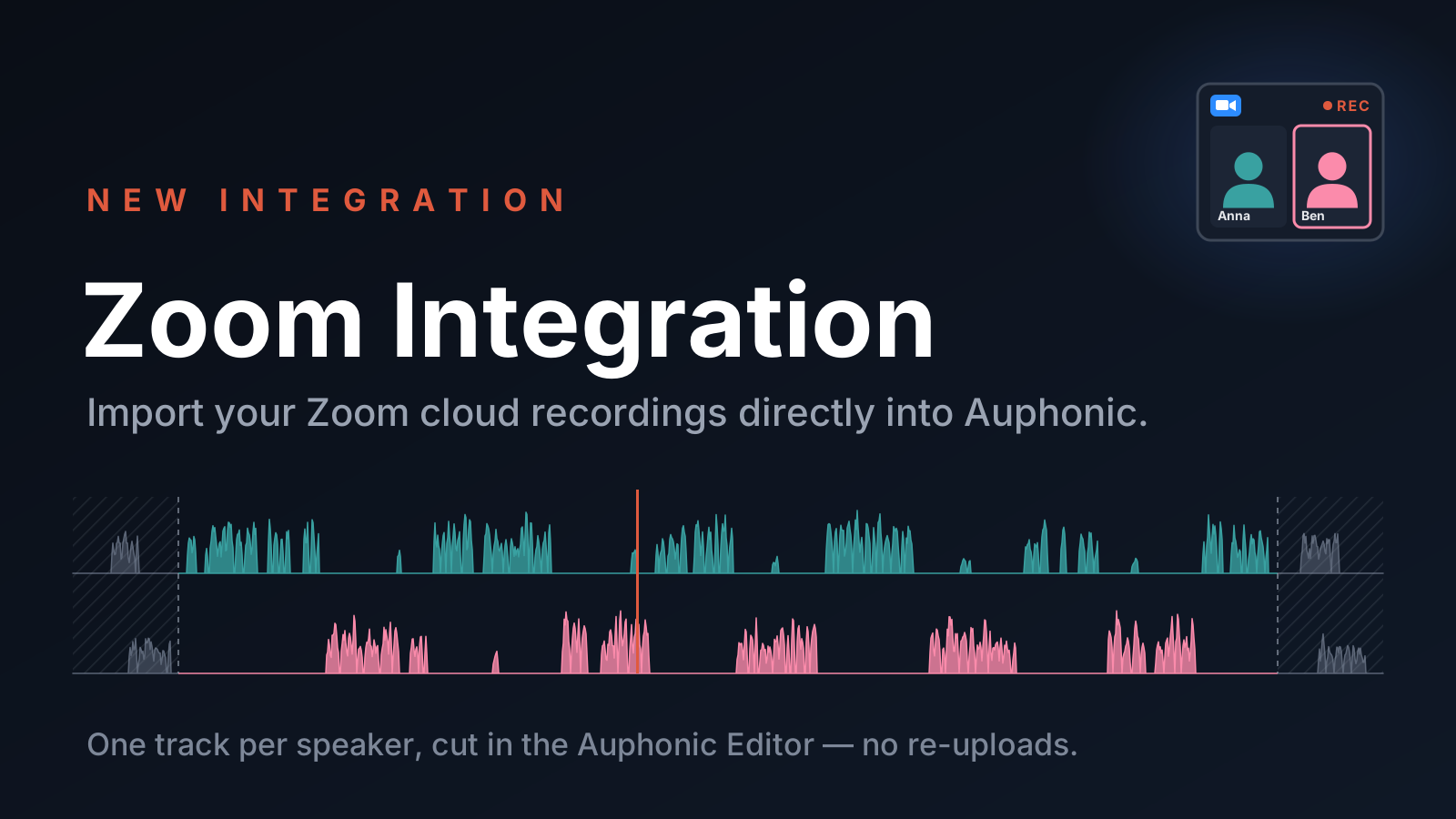
Lots of podcasts, interviews, panel discussions and online lectures are recorded in Zoom. Now you can import these cloud recordings directly into Auphonic — as a single file or with one track per speaker in a Multitrack Production — and cut out the remaining pieces right in the Auphonic Editor. No downloading, no re-uploading, and no need to open the recording in your own audio editor.
From Zoom Meeting to Finished Production
Until now, getting a Zoom recording into Auphonic meant downloading it from the Zoom cloud first and then uploading it again, which can take a while for long meetings and video files.
With the new integration, Zoom is available as an External Service: you simply pick a meeting and a recording in the production form, and Auphonic fetches the file from the Zoom cloud by itself. Both audio-only recordings and videos are supported, for example the Shared Screen with Speaker View of your meeting. Auphonic then processes the recording like any other input file: leveling, noise reduction, loudness normalization, automatic cutting, transcription, and publishing to all your other External Services.
One Track per Speaker
Zoom can also record a separate audio file for each participant: enable “Record a separate audio file of each participant” in your Zoom cloud recording settings. In a Multitrack Production, you can then import all participant files at once, each as a separate track. Auphonic balances the levels of all speakers, can remove noise and crosstalk in each track, and mixes everything into one consistent result — see our Multitrack Best Practice for more tips.
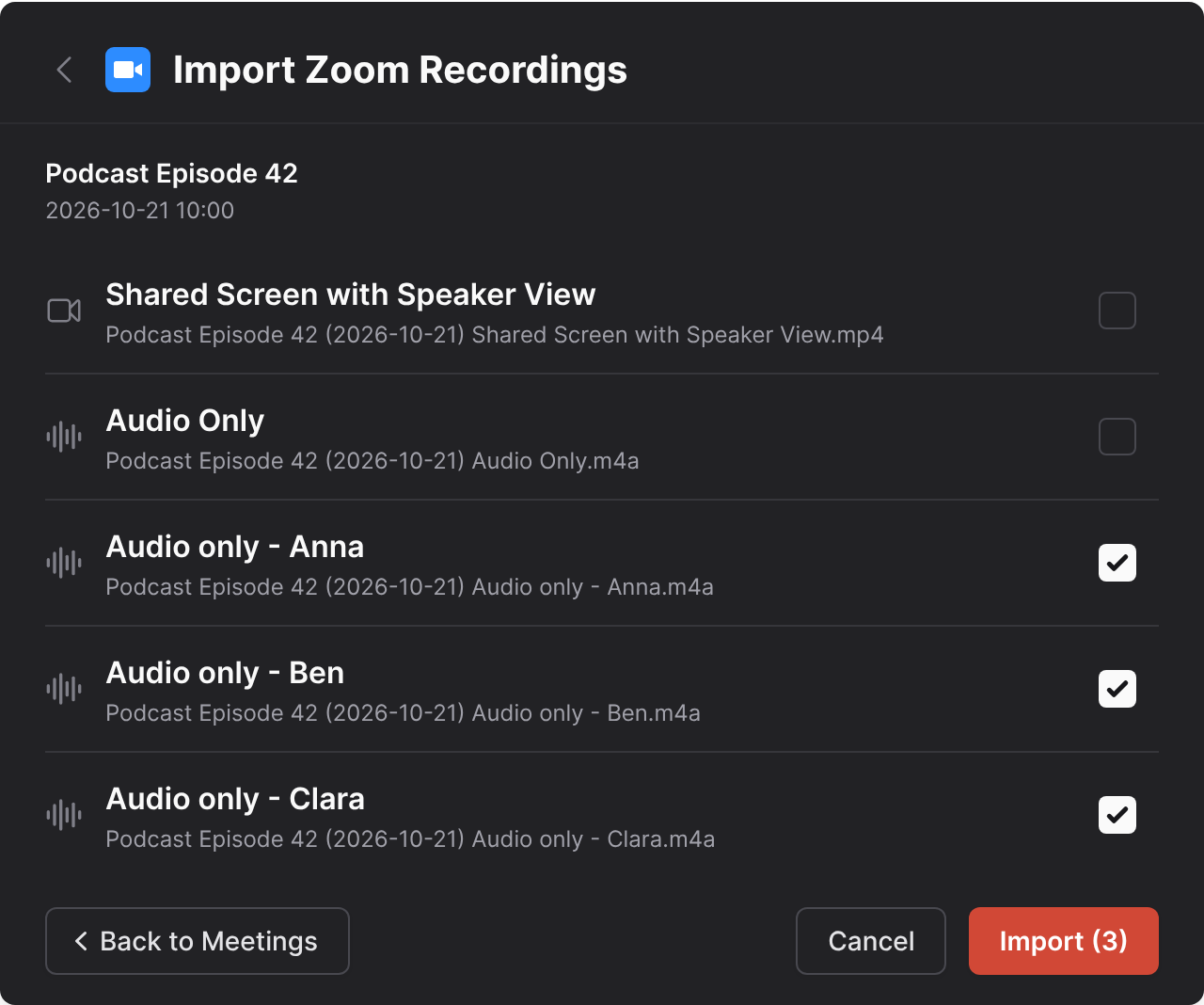 Importing the participant files of a Zoom meeting into a Multitrack Production, shown in our new dark mode.
Each selected file becomes a separate track. The video and the Audio Only file stay unselected, as they already contain all speakers.
Importing the participant files of a Zoom meeting into a Multitrack Production, shown in our new dark mode.
Each selected file becomes a separate track. The video and the Audio Only file stay unselected, as they already contain all speakers.
Cut Your Recording in the Auphonic Editor
The Zoom cloud recording can be directly edited in the Auphonic Editor once processing is complete. Using our cut editor, the start, end, or unwanted sections can be trimmed from the recording. No need to edit the file in your own DAW.
Get Started
All you need is a Zoom account with Cloud Recording enabled (part of Zoom’s paid plans) and at least one meeting recorded to the Zoom cloud — recordings stored locally on your computer cannot be imported.
- Open your External Services, click Add External Service, choose Zoom and click Connect to Zoom. Zoom then asks you to authorize Auphonic.
- Create a new Production or Multitrack Production and choose Zoom as source.
- Pick a meeting and the recording you want to process (or several, in a Multitrack Production), and start your production. The list shows the cloud recordings of the last 30 days; for older meetings, select another date range.
You can also add Auphonic from the Zoom App Marketplace. If your Zoom account belongs to an organization, an admin might have to approve the Auphonic app first. For all details and troubleshooting tips, please see the Zoom section of our External Services help page.
Your Data Stays Safe
Auphonic only reads your cloud recordings: it asks for two read-only permissions and never uploads, changes or deletes anything in your Zoom account. The access tokens are stored encrypted, and you can disconnect at any time, in Auphonic or in the Zoom App Marketplace — in both cases, we delete the stored tokens automatically.
Feedback
We hope the Zoom integration makes your workflow a bit faster! If you have feedback, questions, or ideas for new features, please contact us or write to support@auphonic.com.