You can now see the level changes of our Adaptive Leveler as a gain curve, and adjust them directly in the
Auphonic Editor!
Our Adaptive Leveler
balances the levels of your recording automatically.
But loudness is also a matter of taste: maybe you want a laugh a bit quieter, or a shy speaker a bit louder
than our algorithms decided. With gain points you can now
adjust exactly these segments, while everything else stays as it is.

Our Next Web Editing Feature
The editable gain curve is the third editing feature in our Auphonic Editor, after the Cut Editor and the editable Algorithm Segments (introduced as Denoising Editor; per segment you can now choose the denoising method and the filtering or voice enhancement settings, like our Studio Voice). All three follow the same idea: our AI and algorithms do the heavy lifting, and you refine their decisions where you disagree — without leaving Auphonic, and without having to export your production to a DAW.
With cuts you decide what stays in your audio, with algorithm segments which denoising, filtering, and enhancement algorithms run where — and now, with gain points, how loud each part of your audio should be.
Gain Curves and the Adaptive Leveler
In a DAW or audio editor, gain curves are known as volume automation or volume envelopes: a line over the waveform with points you drag to make a section louder or quieter. Back in 2011 we described this manual workflow in Loudness Normalization and Compression of Podcasts and Speech Audio — time-consuming work that our Adaptive Leveler was built to automate.
The Adaptive Leveler corrects level differences within one file: it amplifies quiet speakers, brings music to a loudness comparable to speech without destroying its dynamics, and excludes unwanted segments like breaths, noise, or silence from being amplified. In multitrack productions, the Multitrack Adaptive Leveler does the same for every track, using the information from all tracks to decide when a speaker is active (see also the leveler settings in the production form).
The Auphonic Editor now shows the leveler's level changes as a gain curve in the input track, with its minimum and maximum values in dB. This curve is an approximation of what the leveler does, so that you have something to adjust: your gain points are applied on top of the leveler's result. Use the Gain Curve button in the top bar to show or hide it.
How to Use the Editable Gain Curve
Our leveler aims for a balanced, consistent loudness. Where you want a different result — a speaker who should stay in the background, a laugh that got amplified more than you like, a jingle that should be louder or quieter relative to speech — this is often a subjective decision, not a mistake of the leveler. Instead of re-running the production with different leveler settings, you now add gain points exactly where needed:
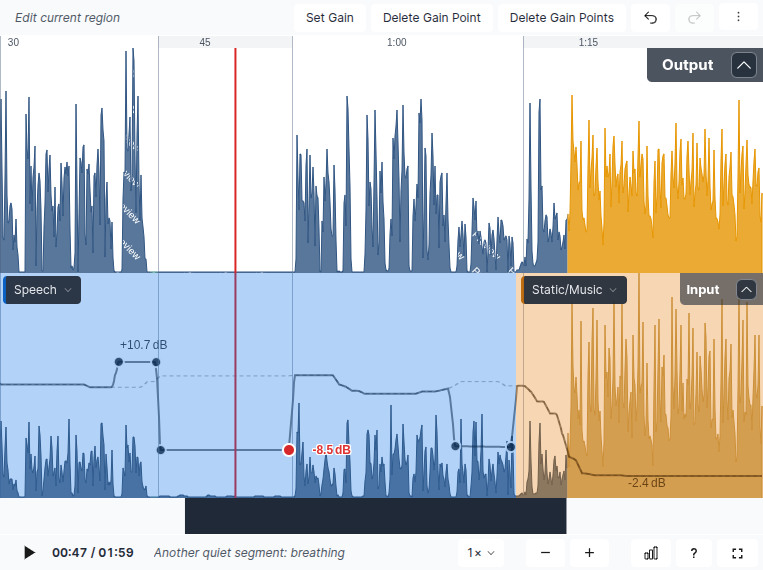 Gain points in the input track: one segment raised, a quiet segment with breathing lowered by 8.5 dB.
The dashed line shows the original leveler curve, the output waveform above previews the result.
Gain points in the input track: one segment raised, a quiet segment with breathing lowered by 8.5 dB.
The dashed line shows the original leveler curve, the output waveform above previews the result.
- Run your production with the Adaptive Leveler and open the result page with our Auphonic Editor. The Gain Curve button in the top bar shows or hides the curve.
- Drag the gain curve (or double-click it) to create a pair of gain points and raise or lower the region between them; drag close to an existing point to add a single one. Drag points in time and level, or click Set Gain to type an exact value in dB — relative to the leveler curve, so +3.0 dB means 3 dB louder than our leveler decided.
- Delete Gain Point removes the selected point, Delete Gain Points restores the original curve of a track; undo/redo, the right-click menu, and keyboard shortcuts work as usual — see the shortcuts help in the editor. The original leveler curve stays visible as a dashed line, so you always see how far you deviate from it.
- Listen: in singletrack productions, gain points are applied in realtime — during playback and in the output waveform. In multitrack productions a live preview of the mix is not possible, because we do not export the individual processed output tracks by default; the editor shows a short hint there, and you hear the result after reprocessing.
- Press Apply Changes, or start the production again via Edit Production if you also want to change other settings. Reprocessing does not cost additional credits — as with cuts and algorithm segments, all edits are free of charge.
Try the editable gain curve now!
Conclusion
Automatic leveling saves a lot of time, but loudness is also a creative decision. With the editable gain curve, our Adaptive Leveler still handles the whole production — and you correct the few segments where you want a different result, with a couple of gain points. Together with the Cut Editor and the editable Algorithm Segments, this is another step in our direction of blending powerful automation with precise human refinement.
As always, we are very interested in how you use the new gain curve editing in your workflows, and which leveler decisions you find yourself correcting most often. If you have feedback, questions, or suggestions, please contact us, send us a message via the production feedback form, or write to support@auphonic.com.