Auphonic can now render the transcript from its Automatic Speech Recognition as subtitles burned directly into your video – no separate video editor or subtitle tool required. This works with any video output, including videos generated from a cover image or an Audiogram, so even audio-only productions can get captioned. Enable speech recognition, add a video output, tick Burn in subtitles, and Auphonic bakes styled, perfectly timed captions right into the picture.
Burned-in captions are ideal for social media, where videos often autoplay muted and most platforms don't display separate subtitle tracks. Instead of exporting an SRT or VTT file and hoping the player shows it, the words are part of the video itself – and you control exactly how they look.
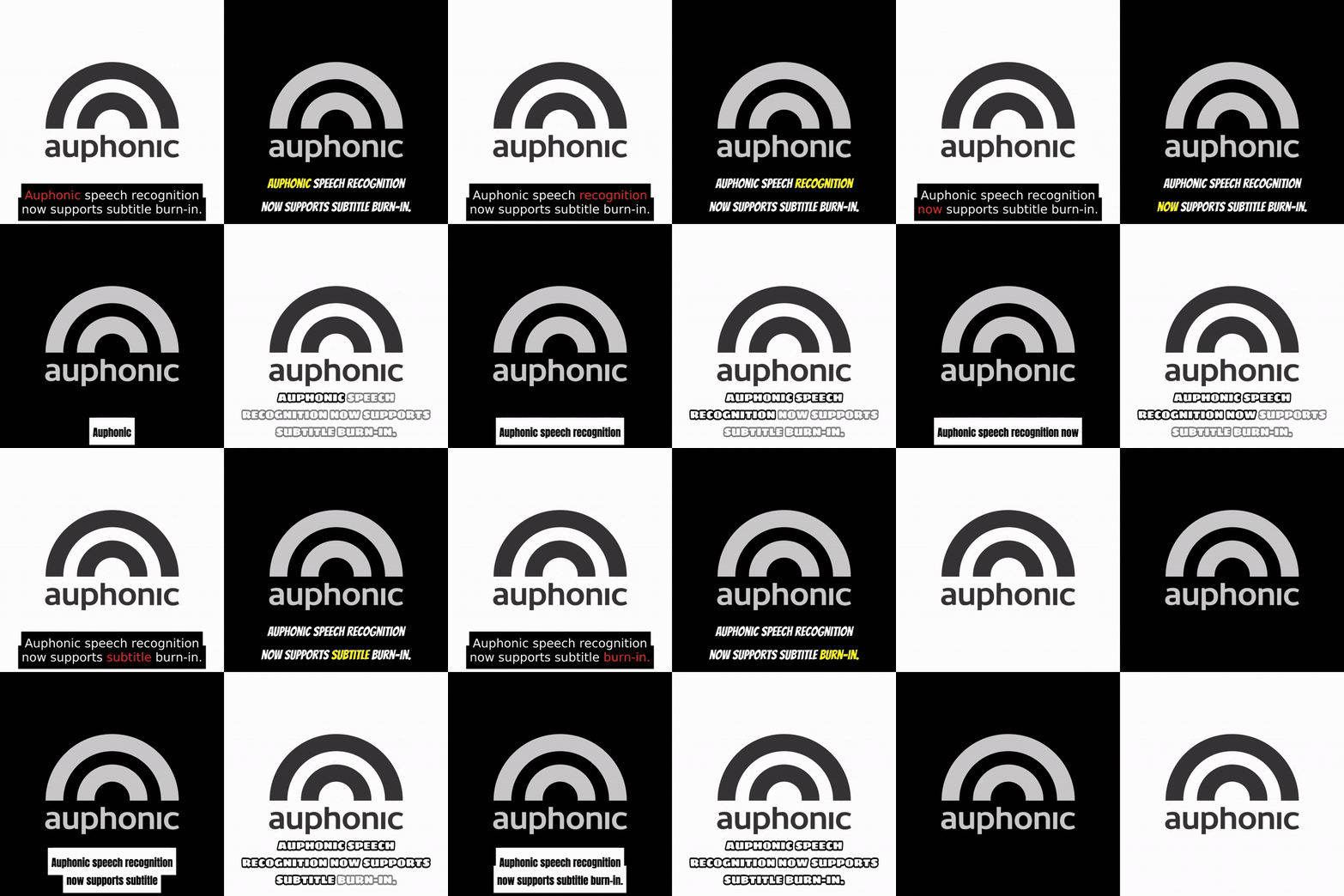 A few of the caption looks you can create – from a clean colored box to bold outlines and per-word highlights
How It Works
Burn-in subtitles combine two things Auphonic already does: automatic transcription and video output. In your production (or preset):
- Enable Speech Recognition so Auphonic generates a word-level transcript of your recording.
- Add a Video Output and tick Burn in subtitles on that output.
- Style the captions to taste – a live preview shows the result before you process (see the screenshot below).
Because the captions are driven by the word-level transcript, they are automatically synced to the speech, wrapped into readable lines, and – with the word-highlight modes below – can even light up word by word as they are spoken.
No video? No problem. You don't need a video source to use burn-in subtitles. For audio-only productions, Auphonic can generate a video output from your Cover Image (and Chapter Images). Captions can be burned into that video – so a plain audio podcast becomes a ready-to-share, captioned video clip for social media.
Full Styling Control
A compact toolbar on the video output lets you match the captions to your brand or platform:
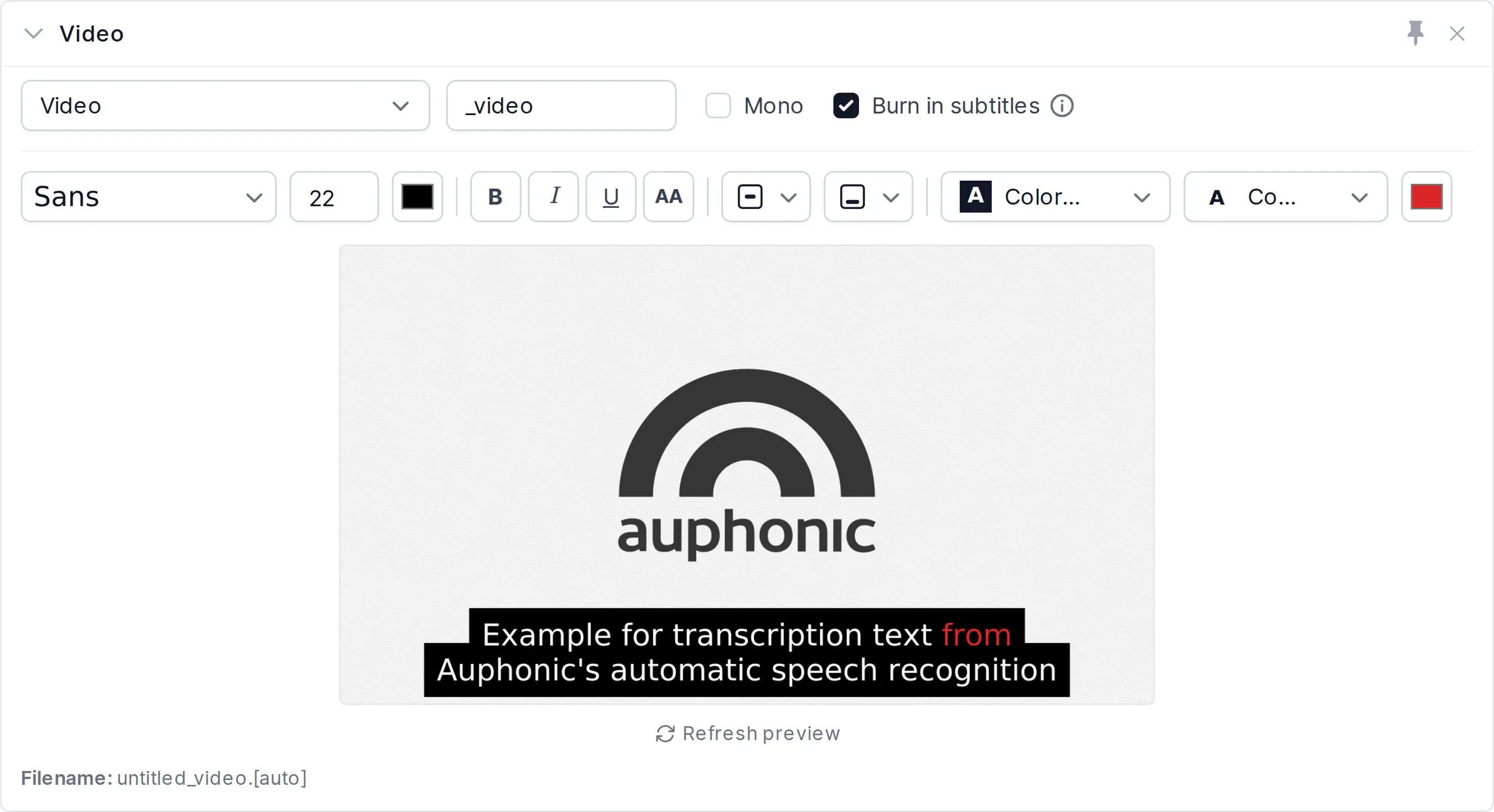 Style your captions on a video output and see the result in the live preview
- Font – choose from 22 built-in fonts, from clean sans and mono faces to bold display styles.
- Size and text styling – font size plus bold, italic, underline, and an UPPERCASE toggle.
- Style mode – how the text sits on the video: Plain, Colored outline, White outline, Colored background, or White background box.
- Colors – a base/accent color and a separate active-word color for the highlight effects.
- Alignment – position the captions horizontally (left / center / right) and vertically (top / middle / raised bottom / bottom).
- Per-word highlight – add motion to your captions: Karaoke (words appear one by one), Reveal (upcoming words dimmed), Color or Bold color on the active word, plus Border and Glow effects.
The live preview updates as you change settings, so you can dial in the exact look before spending any processing credit.
Burn-In Subtitles via API and CLI
Burn-in subtitles are fully supported in the Auphonic API and the Auphonic CLI, so you can build them straight into automated production pipelines.
With the API, styling is controlled by a burn_in_subtitles object on the
video output file:
{
  "output_files": [
    {
      "format": "video",
      "burn_in_subtitles": {
        "enabled": true,
        "font": "anton",
        "font_size": 30,
        "style_mode": "color_outline",
        "word_highlight": "highlight"
      }
    }
  ]
}
You can query all available fonts, styles, alignments and their defaults from the
burn_in_subtitles block on video formats in
/api/info/output_files.json.
With the CLI, burn a styled transcript into a video in a single command:
auphonic process episode.mp4 \
  --speech-recognition \
  --output "format=video,subtitle_font=anton,subtitle_style_mode=color_outline,subtitle_word_highlight=highlight" \
  --wait --download
See the CLI documentation for the full list of subtitle styling keys and their values.
Conclusion
- Auphonic renders your speech-recognition transcript as subtitles burned directly into the video image
- Works even for audio-only productions – captions can be burned into a video generated from your cover image
- Perfect for social media, where captions need to be part of the picture
- Full control over font, size, colors, style, alignment, and per-word highlighting, with a live preview
- Works in the web interface, the API, and the CLI
Feedback
We're continuously improving Auphonic based on real production workflows. If you have feedback, questions, or ideas, please reach out via our Contact Page, email support@auphonic.com, or send feedback from the results page.